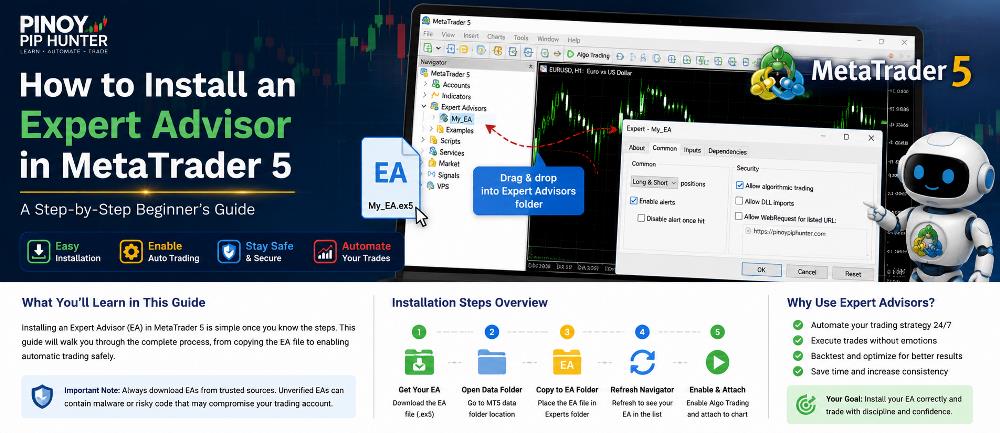
Learning how to install an Expert Advisor in MT5 is one of the first practical steps for traders who want to explore automated trading.
An Expert Advisor, commonly called an EA, is a program that runs inside MetaTrader and can analyze market conditions, generate signals, manage positions, or execute trades automatically according to programmed rules.
Installing an EA in MetaTrader 5 is relatively simple once you understand where the files belong and which platform settings need to be enabled.
In this beginner-friendly guide, we will explain:
- How to install an Expert Advisor in MetaTrader 5
- Where to place an EA file
- The difference between MQ5 and EX5 files
- How to refresh the MT5 Navigator
- How to attach an EA to a chart
- How to enable Algo Trading
- How to confirm that an EA is running
- What to do when an Expert Advisor does not appear
- What to check before using an EA with real money
If you are completely new to EAs, you may want to read our What Is an Expert Advisor in MetaTrader? A Beginner’s Guide first.
What Do You Need Before Installing an Expert Advisor in MT5?
Before starting, you normally need three things:
- MetaTrader 5 installed on your computer
- An MT5-compatible Expert Advisor
- A trading account connected to MetaTrader 5
The trading account can usually be either a demo account or a live account, depending on the EA and broker.
For beginners, using a demo account first is generally the safer approach because it lets you confirm that the Expert Advisor operates as expected without immediately risking real capital.
You should also confirm that your Expert Advisor was actually developed for MetaTrader 5.
An MT4 Expert Advisor cannot simply be installed into MT5 and expected to work because MT4 and MT5 use different program formats and programming environments.
If you are unsure about the differences between the platforms, see our guide:
MetaTrader 4 vs MetaTrader 5 for Automated Trading: Which Is Better?
What File Type Does an MT5 Expert Advisor Use?
You will commonly encounter two MT5 Expert Advisor file extensions:
.MQ5 File
An MQ5 file contains MQL5 source code.
This is the editable program code used by developers to create an Expert Advisor.
If you have the MQ5 source file, it can be opened and compiled using MetaEditor.
.EX5 File
An EX5 file is the compiled executable version of an MQL5 program.
This is normally the file that MetaTrader 5 runs.
You do not need access to the MQ5 source code simply to operate an EA if you have a valid compiled EX5 version.
A commercial EA developer may therefore provide only an EX5 file to protect the strategy’s proprietary source code.
How to Install an Expert Advisor in MT5
The following procedure covers the standard manual installation method.
Step 1: Open MetaTrader 5
Launch your MetaTrader 5 desktop terminal.
Make sure you are opening the correct installation if you have several MT5 terminals installed on your computer.
This is particularly important for traders using accounts from multiple brokers.
Each MetaTrader installation may have its own data directory, which means installing an EA in one terminal does not necessarily install it in another.
Step 2: Open the MetaTrader 5 Data Folder
From the top menu in MetaTrader 5, select:
File → Open Data Folder
MetaTrader will open the directory used by that particular terminal.
Using Open Data Folder is preferable to guessing where MetaTrader is installed because the program files and the terminal’s working data can be stored in different locations.
Step 3: Open the MQL5 Folder
Inside the Data Folder, open:
MQL5
This directory contains folders used by different types of MetaTrader 5 programs.
You may see folders such as:
- Experts
- Indicators
- Scripts
- Libraries
- Include
- Files
- Presets
Because we are installing an Expert Advisor, the folder we need is:
Experts
Step 4: Open the Experts Folder
The standard EA location is:
MQL5 → Experts
Copy your MT5 Expert Advisor file into this folder.
For example:
MyTradingEA.ex5
or:
MyTradingEA.mq5
You can also organize EAs inside subfolders if you maintain multiple trading systems.
For example:
MQL5 → Experts → Pinoy Pip Hunter
MetaTrader supports Expert Advisors located within the Experts directory structure.
Step 5: Return to MetaTrader 5
After copying the file, return to your MT5 terminal.
The new Expert Advisor may not immediately appear in the Navigator.
That does not necessarily mean the installation failed.
Step 6: Refresh the Navigator
Open the Navigator panel if it is not already visible.
You can normally access it through:
View → Navigator
Then locate:
Expert Advisors
Right-click the Expert Advisors section and select:
Refresh
MetaTrader will rescan the available programs.
Your new EA should then appear in the list.
If it still does not appear, restarting MetaTrader 5 is another simple troubleshooting step.
Step 7: Open the Chart You Want the EA to Trade
Open the chart for the financial instrument that the Expert Advisor is designed to trade.
For example:
- EURUSD
- GBPUSD
- USDJPY
- XAUUSD
- BTCUSD
Then choose the appropriate timeframe.
Examples include:
- M1
- M5
- M15
- M30
- H1
- H4
- D1
The correct symbol and timeframe depend on the trading strategy.
Do not assume that an EA designed for EURUSD M15 should automatically be used on XAUUSD H1.
Check the developer’s instructions before running the Expert Advisor.
Step 8: Attach the Expert Advisor to the Chart
In the Navigator:
Expert Advisors → Select Your EA
You can then either:
- Drag the EA onto the chart, or
- Double-click the EA
MetaTrader will open the Expert Advisor properties window.
This is where you can review the EA’s permissions and input parameters before starting it.
Step 9: Review the EA Input Settings
Most Expert Advisors provide adjustable parameters.
Depending on the trading system, these may include:
- Lot size
- Risk percentage
- Stop loss
- Take profit
- Maximum number of trades
- Trading sessions
- Trailing stop
- Breakeven settings
- Maximum spread
- Indicator parameters
- Entry filters
- Magic number
- Basket profit target
Do not change parameters randomly.
If the EA developer provides recommended settings, begin with those settings unless you understand exactly what a parameter controls.
Changing one seemingly small setting can significantly alter the strategy’s risk and trading behavior.
Step 10: Allow Algo Trading for the Expert Advisor
For the Expert Advisor to place trades, automated trading must be permitted.
MetaTrader 5 includes controls that can restrict Expert Advisors from trading even while the EA itself remains loaded on a chart.
Make sure the appropriate Algo Trading / automated trading permission is enabled.
MetaQuotes’ official MetaTrader documentation explains that disabling automated trading prevents Expert Advisors and scripts from performing trading operations even though they may continue operating analytically.
Official reference:
MetaTrader 5 – Expert Advisors and Custom Indicators
You should therefore check both:
- The platform’s Algo Trading permission
- The individual Expert Advisor’s trading permission
An EA can be successfully installed and attached to a chart yet still be unable to execute trades if automated trading is disabled.
Step 11: Confirm That the Expert Advisor Is Running
After attaching the EA and confirming its settings, check that it is actually active.
Depending on the Expert Advisor, you may see:
- The EA name on the chart
- A dashboard
- Trading information
- Indicator graphics
- Status messages
- Entry signals
- Risk information
However, not every EA displays a dashboard.
An EA that shows no graphical interface may still be working.
For a more reliable check, inspect the Experts and Journal sections of the MetaTrader 5 Toolbox.
These logs can show information relating to:
- EA initialization
- Trading permissions
- Errors
- Order activity
- Connection problems
- EA alerts
- Trade execution
MetaTrader’s official documentation notes that the Experts Journal contains information about running Expert Advisors, including trading actions, alerts, and related messages.
How to Install an MQ5 Source File
If you received an MQ5 source file rather than a compiled EX5 file, you may need to compile it.
First place the MQ5 file inside:
MQL5 → Experts
Then open it in MetaEditor.
Compile the program.
If the source code contains no compilation errors, MetaEditor creates the executable version required by MetaTrader 5.
Return to MT5 and refresh the Expert Advisors section in Navigator.
The EA should then become available.
If compilation generates errors, the source code may require correction before the Expert Advisor can run.
How to Install an EX5 Expert Advisor
If you already received an EX5 file, installation is simpler.
Place the file inside:
MQL5 → Experts
Then:
- Return to MetaTrader 5
- Refresh Expert Advisors in Navigator
- Locate the EA
- Open the correct trading chart
- Attach the EA
- Configure its inputs
- Enable the required Algo Trading permissions
You generally do not need to compile an EX5 file because it is already an executable MetaTrader 5 program.
What If the EA Was Purchased From the MQL5 Market?
An Expert Advisor purchased through the official MQL5 Market may use a different installation process from a manually supplied EX5 file.
Market products can be associated with the user’s MQL5 account and installation/activation system.
For Market purchases, follow the installation procedure provided through MetaTrader and the MQL5 Market rather than assuming that manually copying files between computers or terminals will work.
This distinction is particularly important for commercially licensed EAs.
Expert Advisor Not Showing in MT5: What Should You Check?
If you installed an Expert Advisor but cannot find it, work through the following checks.
1. Check the File Location
Confirm that the EA was placed inside the correct terminal’s:
MQL5 → Experts
If you have multiple MT5 installations, you may have copied the EA into another terminal’s Data Folder.
Always access the folder through:
File → Open Data Folder
from the MT5 terminal where you actually want to run the EA.
2. Confirm It Is an MT5 Expert Advisor
MT5 normally uses:
- MQ5 source files
- EX5 executable files
An MT4 EX4 file is not an MT5 Expert Advisor.
If you only have an MT4 version, you generally need an MT5 version of the program.
3. Refresh Navigator
Right-click the Expert Advisors section and select Refresh.
4. Restart MetaTrader 5
Closing and reopening MT5 can force the terminal to reload available Expert Advisors.
5. Check for Compilation Errors
If you are using an MQ5 source file, open it in MetaEditor and compile it.
Compilation errors can prevent the executable EA from being generated correctly.
6. Check the Experts and Journal Logs
MetaTrader may report exactly why the EA failed to initialize.
Look for messages relating to:
- Missing files
- Invalid parameters
- Disabled trading
- Licensing
- Initialization errors
- Broker restrictions
- Program errors
EA Is Running but Not Opening Trades
Another common beginner problem is assuming that an EA is broken simply because it has not opened a trade.
An Expert Advisor does not necessarily trade immediately after installation.
The programmed entry conditions may simply not have occurred.
For example, an EA may require:
- A particular market trend
- A specific indicator signal
- A volatility condition
- A particular trading session
- A maximum-spread condition
- Confirmation from several indicators
If one condition is missing, the EA may correctly remain inactive.
Before troubleshooting the program, understand the strategy’s actual entry rules.
Other Reasons an EA May Not Trade
If the Expert Advisor appears to be running but never executes trades, check:
- Algo Trading is enabled
- The EA is permitted to trade
- The trading account is connected
- The market is open
- The selected symbol is correct
- The timeframe is correct
- Lot size is valid
- Available margin is sufficient
- Spread is within the EA’s allowed limit
- Maximum open trades has not been reached
- Trading-session restrictions are not active
- The EA license is valid, if applicable
- Broker-specific symbol names are supported
- Required indicators or supporting files are installed
This is why the Experts and Journal logs are extremely useful when troubleshooting an automated trading system.
Should You Use an EA Immediately After Installing It?
Installing an Expert Advisor successfully does not mean it should immediately be used on a live trading account.
Installation confirms only that the program can be loaded into MetaTrader.
It tells you nothing about whether the strategy is profitable or appropriate for your risk tolerance.
Before considering live use, you should understand:
- How the EA enters trades
- How it exits trades
- Its lot-sizing method
- Its stop-loss behavior
- Maximum possible open positions
- Historical drawdown
- Whether it uses grids or averaging
- Whether it uses martingale-style position sizing
- Which symbols it was designed for
- Which timeframe it uses
- How it behaves during high volatility
Backtest the EA Before Live Trading
MetaTrader 5 includes a built-in Strategy Tester specifically designed for evaluating Expert Advisors using historical market data.
MetaQuotes explains that the Strategy Tester can test an Expert Advisor using historical data and can also run optimization using different parameter combinations.
We have a complete guide here:
How to Backtest an Expert Advisor in MetaTrader 5: Step-by-Step Guide
A backtest can help you examine statistics such as:
- Total trades
- Net profit
- Maximum drawdown
- Profit factor
- Win rate
- Expected payoff
- Equity behavior
Remember that historical results do not guarantee future performance.
The purpose of backtesting is to understand how the strategy behaved under previous market conditions and identify potential weaknesses.
Forward-Test the EA on a Demo Account
After backtesting, consider running the Expert Advisor on a demo account.
This is commonly called forward testing.
Unlike a historical backtest, forward testing lets the EA interact with current market conditions.
It can help reveal practical issues involving:
- Spread
- Broker execution
- Trading sessions
- Symbol specifications
- Signal timing
- Internet connectivity
- Platform operation
- EA settings
A system may behave differently in forward testing than it did during historical testing.
Do You Need to Keep MetaTrader 5 Running?
For a locally running Expert Advisor to continue operating, the MetaTrader terminal and the environment hosting it generally need to remain available.
If you close the terminal or shut down the computer hosting the EA, the locally running Expert Advisor cannot continue processing market events there.
This is one reason automated traders often use a VPS, or Virtual Private Server.
A VPS can keep MetaTrader running without requiring the trader’s personal computer to remain switched on continuously.
We will cover VPS setup for MetaTrader in a separate guide.
Can You Run More Than One Expert Advisor in MT5?
Yes, MetaTrader 5 can run multiple Expert Advisors.
However, each EA must be configured correctly.
Running several automated systems simultaneously can introduce additional considerations such as:
- Combined account exposure
- Margin usage
- Correlated trades
- Conflicting strategies
- Multiple positions on the same symbol
- Magic-number management
- Overall drawdown
Even if each EA has acceptable individual risk, several systems running together can produce much greater total account exposure.
Risk should therefore be evaluated at the portfolio level, not only EA by EA.
If you are new to automated systems in general, also read:
Algorithmic Trading for Beginners: A Complete Beginner’s Guide
Common Mistakes When Installing an Expert Advisor
Installing an MT4 EA in MT5
MT4 and MT5 Expert Advisors are not directly interchangeable.
Always obtain the correct version.
Copying the EA Into the Wrong Folder
Use File → Open Data Folder instead of manually searching Windows folders.
Forgetting to Enable Algo Trading
An EA may be loaded correctly but prevented from opening trades.
Using the Wrong Symbol
A strategy intended for XAUUSD may not be designed for EURUSD.
Broker-specific suffixes can also matter.
Using the Wrong Timeframe
Some Expert Advisors perform calculations based on the chart timeframe.
Always check the recommended setting.
Changing Inputs Without Understanding Them
Increasing lot size or modifying risk parameters can dramatically change account exposure.
Going Straight to a Live Account
Successful installation is not successful validation.
Test the system first.
Frequently Asked Questions
How do I install an Expert Advisor in MT5?
Open MetaTrader 5, select File → Open Data Folder → MQL5 → Experts, copy the MT5 EA into the Experts folder, return to MT5, refresh the Navigator, and attach the EA to the appropriate chart.
Where do I put an EA file in MetaTrader 5?
The standard location for manually installed Expert Advisors is the MQL5 → Experts directory inside the MetaTrader 5 Data Folder.
What is the difference between MQ5 and EX5?
MQ5 contains MQL5 source code, while EX5 is the compiled executable program that MetaTrader 5 can run.
Can I install an EX4 EA in MT5?
No. EX4 is associated with MetaTrader 4. You need an MT5-compatible version of the Expert Advisor.
Why is my Expert Advisor not showing in MT5?
Common reasons include placing the file in the wrong terminal Data Folder, using an incompatible file, failing to refresh Navigator, or having source-code compilation errors.
Why is my EA installed but not trading?
Algo Trading may be disabled, the EA’s trading permission may be off, or the strategy’s entry conditions may simply not have occurred. Account, symbol, margin, spread, session, licensing, and broker settings can also affect execution.
Do I need to leave MT5 open for an EA to trade?
If the Expert Advisor is running locally on your computer, the MetaTrader environment hosting the EA needs to remain operational. Traders who need continuous operation commonly use a VPS or another continuously available environment.
Should beginners use an Expert Advisor?
Beginners can use EAs, but they should understand the strategy, risk settings, drawdown, and trading rules before risking real money. Automated trading does not eliminate trading risk.
Final Thoughts
Learning how to install an Expert Advisor in MT5 is straightforward once you understand MetaTrader’s folder structure and automated-trading permissions.
The basic process is:
- Open MetaTrader 5
- Select File → Open Data Folder
- Open MQL5 → Experts
- Copy the EA into the folder
- Refresh the Navigator
- Open the correct chart
- Attach the Expert Advisor
- Review its settings
- Enable the necessary Algo Trading permissions
- Confirm operation through the chart and platform logs
But installation is only the beginning.
Before using any Expert Advisor with real capital, understand how it trades, test it across historical data, observe it in demo conditions, and evaluate its potential drawdown and overall risk.
Automated trading can provide systematic and consistent execution, but no Expert Advisor can guarantee profitability.
The quality of the underlying trading strategy and its risk management remain more important than the automation itself.
Continue Learning
If you want to build a stronger foundation in automated trading, continue with these Pinoy Pip Hunter guides:
- What Is an Expert Advisor in MetaTrader? A Beginner’s Guide
- How to Backtest an Expert Advisor in MetaTrader 5
- MetaTrader 4 vs MetaTrader 5 for Automated Trading
- Algorithmic Trading for Beginners
External References
For official MetaTrader documentation, see:
- MetaTrader 5 – Expert Advisors and Custom Indicators
- MetaTrader 5 – Strategy Testing
- MetaTrader 5 – Platform Settings
Risk Warning: Trading forex and other leveraged financial instruments involves significant risk. Automated trading systems can generate losses as well as profits. Historical or backtested results do not guarantee future performance.


5 Trackbacks / Pingbacks