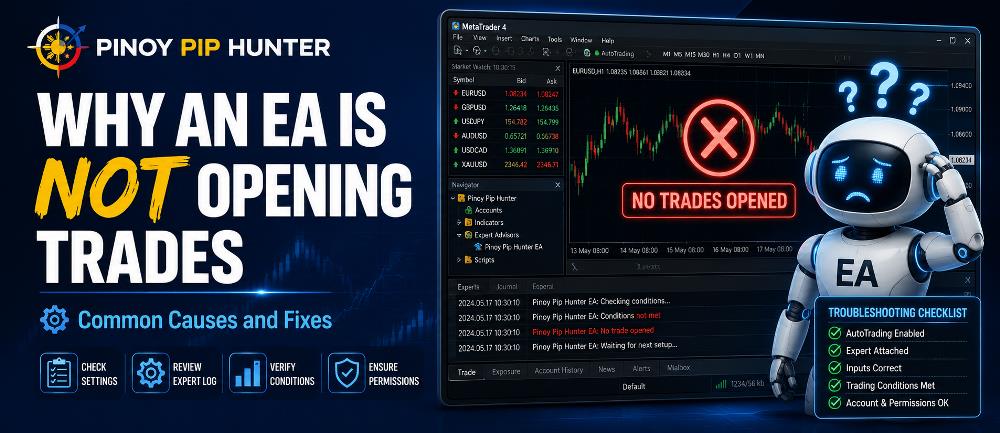
You installed an Expert Advisor, attached it to your MetaTrader chart, enabled it, and waited for a trade.
But nothing happens.
No BUY order.
No SELL order.
No obvious warning explaining why the EA is inactive.
This is one of the most common problems traders encounter when they begin using automated trading systems.
An EA not opening trades does not necessarily mean that the Expert Advisor is broken. In many cases, the EA is operating normally but a trading permission, entry condition, account restriction, risk-management rule, or broker setting is preventing it from entering the market.
In this guide, we will explain the most common reasons an Expert Advisor may not open trades in MetaTrader 5 and what you should check before concluding that there is a problem with the EA itself.
If you are completely new to automated trading, start with our guide explaining what an Expert Advisor is in MetaTrader.
Why an EA Can Be Running Without Opening Trades
An Expert Advisor follows programmed rules.
It does not simply open a trade because it has been attached to a chart.
Depending on the strategy, the EA may be checking:
- Trend direction
- Momentum
- Indicator signals
- Candle patterns
- Spread
- Trading session
- Maximum open trades
- Account margin
- News events
- Volatility
- Existing positions
- Risk limits
If even one required condition is missing, the Expert Advisor may correctly remain inactive.
That distinction is important.
An EA that is not trading is not automatically an EA that is not working.
Here are the most common reasons.
1. Algo Trading Is Disabled
The first thing to check is whether automated trading is actually enabled.
MetaTrader 5 can allow an Expert Advisor to remain attached to a chart while preventing it from executing trades.
Look at the Algo Trading button on the MT5 toolbar.
It should be enabled.
You should also check:
Tools → Options → Expert Advisors
and make sure that algorithmic trading is permitted.
MetaTrader provides both platform-level and individual Expert Advisor trading permissions. This means that an EA can appear to be running while still being unable to send trading orders.
MetaQuotes explains these automated-trading permissions in its official MetaTrader documentation. MetaTrader 5 algorithmic trading documentation
If you are unsure how this feature works, our dedicated guide on How to Enable Algo Trading in MT5 explains the setup in detail.
2. The Individual EA Does Not Have Trading Permission
Even when the main Algo Trading button is enabled, the individual Expert Advisor may still be prevented from trading.
Open the EA properties on the chart and check its trading permissions.
Make sure:
Allow Algo Trading / Allow algorithmic trading
is enabled for that Expert Advisor.
Think of this as two levels of permission:
MetaTrader permission → EA permission
Both must allow trading.
If the EA was recently installed, you may also want to review our complete guide on how to install an Expert Advisor in MT5.
3. The EA’s Entry Conditions Have Not Been Met
This is probably the most common reason traders mistakenly believe that an EA is malfunctioning.
Most Expert Advisors require several trading conditions to occur simultaneously.
For example, imagine an EA with the following BUY rules:
- Trend must be bullish
- Momentum must be above zero
- Price must reach a specified area
- A BUY indicator must appear
- The candle must close
- Spread must remain below the maximum allowed level
Suppose five of these six conditions are present.
The EA still should not trade.
That is correct behavior.
A properly programmed trading robot should wait until all required conditions are satisfied.
Depending on the strategy, this could take:
- Several minutes
- Several hours
- Several days
Low-frequency systems may trade even less often.
This is why understanding the strategy behind an Expert Advisor is just as important as installing it correctly.
For a broader introduction to automated strategies, see our Algorithmic Trading for Beginners guide.
4. The EA Is Attached to the Wrong Symbol
Some Expert Advisors are designed for specific trading instruments.
For example, an EA developed specifically for:
XAUUSD
may not work correctly when attached to:
EURUSD
Broker symbol names can also vary.
Gold might appear as:
- XAUUSD
- XAUUSDm
- XAUUSD.a
- XAUUSD.pro
- GOLD
- GOLDm
Some Expert Advisors automatically recognize broker suffixes.
Others do not.
Check the EA documentation and confirm that you are using the correct trading symbol.
Also inspect your broker’s symbol specifications.
5. The EA Is Running on the Wrong Timeframe
Some Expert Advisors work on any timeframe.
Others are designed specifically for one timeframe.
For example:
Symbol: XAUUSD
Timeframe: M5
If the strategy uses M5 candle calculations, attaching it to an H1 chart may produce completely different signals—or no trades at all.
Common MetaTrader timeframes include:
- M1
- M5
- M15
- M30
- H1
- H4
- D1
Always use the timeframe recommended by the EA developer unless the trading system is specifically designed to be timeframe-independent.
6. The Spread Is Too High
Many Expert Advisors contain a maximum spread filter.
The purpose of this filter is to prevent entries when trading costs become unusually expensive.
Suppose the EA has:
Maximum Spread = 30 points
but the current spread is:
45 points
Even if the strategy generates a valid BUY or SELL signal, the EA may deliberately reject the trade.
Spreads can widen considerably:
- Around major economic announcements
- During market rollover
- During periods of low liquidity
- Immediately after the weekly market opens
- During extreme volatility
This is particularly relevant to instruments such as XAUUSD, indices, and cryptocurrencies.
Check the EA inputs for settings such as:
Max Spread
Maximum Spread
Spread Filter
or similar parameters.
7. The Lot Size Is Invalid
The EA may identify a valid trading signal but fail when it attempts to submit the order.
One possible reason is an invalid trading volume.
Every trading instrument has broker-defined requirements such as:
- Minimum lot size
- Maximum lot size
- Volume step
For example:
Minimum volume: 0.01 lot
Volume step: 0.01 lot
If an EA attempts to submit a volume the broker does not accept, the order may be rejected.
Automatic risk calculations can also create this problem.
For example, very low risk on a small account may calculate a position smaller than the broker’s minimum allowable lot size.
Check the Experts and Journal logs for messages relating to invalid volume.
8. There Is Not Enough Free Margin
An Expert Advisor cannot open a new position when the trading account does not have sufficient available margin.
Required margin depends on several factors:
- Trade volume
- Account leverage
- Existing positions
- Trading instrument
- Current equity
- Broker requirements
- Contract specifications
This becomes especially important when an EA attempts to open multiple positions simultaneously.
For example, an account may have enough balance to keep its existing trades open but insufficient free margin to open another position.
Before increasing leverage or changing lot sizes, review the EA’s overall risk exposure.
Insufficient margin should not simply be treated as an obstacle to bypass.
It can indicate that the strategy is attempting to use too much account exposure.
9. The EA Has Reached Its Maximum Open-Trade Limit
Many automated trading systems include safeguards that restrict how many trades can be open simultaneously.
Typical EA settings include:
- Maximum Open Trades
- Maximum BUY Trades
- Maximum SELL Trades
- Maximum Trades Per Symbol
- Maximum Daily Trades
- One Trade Per Signal
- One Trade Per Candle
For example:
Max Open Trades = 1
If one position is already open, the EA may ignore every new entry signal until that position closes.
Pending orders may also count toward certain trade limits depending on how the EA has been programmed.
Check both:
EA Inputs
and
MetaTrader Trade tab
before assuming the trading robot has stopped working.
10. A Trading Session Filter Is Blocking the Trade
Some Expert Advisors are programmed to trade only during particular market hours.
For example:
- Asian session
- London session
- New York session
- London–New York overlap
- Specific broker hours
Outside these periods, the EA deliberately ignores trading signals.
This becomes particularly important because automated systems frequently use broker server time, not your computer’s local time.
Suppose an EA begins trading at:
08:00 server time
That does not necessarily mean:
08:00 your local time
The broker server may operate several hours ahead or behind your location.
If the EA contains session filters, confirm exactly which timezone the strategy uses.
11. A News Filter Is Preventing the EA From Trading
Some Expert Advisors deliberately avoid major economic announcements.
A news filter may temporarily stop new entries around events such as:
- U.S. Nonfarm Payrolls
- CPI inflation
- Federal Reserve interest-rate decisions
- Central-bank announcements
- GDP releases
- Employment reports
- Major geopolitical events
This is normally intended to protect the trading system from sudden volatility and rapidly widening spreads.
Some news-filter EAs obtain economic-calendar information from external services.
If so, the Expert Advisor may require WebRequest permissions.
MetaTrader allows users to specify which external URLs an MQL5 program is allowed to access.
If your EA depends on an online news source, review its installation instructions carefully.
A failed external connection could prevent the filter from operating as expected.
12. Your Broker or Account Does Not Permit EA Trading
Trading permission can also be restricted at account or broker-server level.
Possible causes include:
- Automated trading prohibited
- Account in read-only mode
- Investor password used
- Trading disabled
- Market closed
- Symbol disabled
- Account restrictions
- Broker-side trading limitations
MetaQuotes’ MQL5 documentation distinguishes between local terminal trading permission and permission granted by the trading server/account. MQL5 trade permission documentation
This is important because turning on Algo Trading does not necessarily override restrictions imposed by the account or broker.
Try opening a small manual trade on a demo account.
If manual trading also fails, the problem may be account-related rather than EA-related.
Check the Experts and Journal Tabs
If an EA is not opening trades, one of the most useful troubleshooting tools is already built into MetaTrader.
Open the Toolbox and check:
Experts
and
Journal
These logs may display messages related to:
- Algo Trading disabled
- Invalid volume
- Not enough money
- Invalid stops
- Market closed
- Trade request rejected
- Connection errors
- Initialization problems
- Missing indicators
- Missing files
- Incorrect settings
- Licensing problems
- WebRequest problems
Do not immediately reinstall the EA when something goes wrong.
Check the logs first.
They often reveal the actual problem within seconds.
MetaQuotes also maintains official documentation describing MQL5 runtime errors and program behavior. MQL5 runtime documentation
Does the EA Work in the MT5 Strategy Tester?
Another useful troubleshooting method is to run the EA through the MetaTrader 5 Strategy Tester.
Suppose:
Live chart: No trades
but:
Strategy Tester: Trades appear normally
That gives you valuable information.
It suggests that the EA’s basic entry and execution logic may be functioning.
You can then investigate differences involving:
- Current market conditions
- Live spreads
- Trading permissions
- Broker settings
- Trading sessions
- Symbol specifications
- External data
- Current EA inputs
MetaTrader 5 includes a dedicated Strategy Tester for testing Expert Advisors against historical market data. MetaQuotes explains that the tester can be used to examine whether an EA executes trading operations according to the programmed trading system.
Follow our complete tutorial on how to backtest an Expert Advisor in MT5 if you have not tested the EA yet.
Use Visual Testing to Check Entry Logic
When troubleshooting a more complicated EA, Visual Mode can be particularly useful.
Instead of simply looking at the final backtest report, you can watch the strategy operate on a simulated chart.
This may help determine whether:
- Entry indicators appear correctly
- The EA recognizes signals
- Trades open at the expected time
- Stop losses are calculated correctly
- Take profits work
- Session filters activate properly
- The EA incorrectly skips signals
This can be especially helpful when developing or validating a custom Expert Advisor.
Forward Test the EA on a Demo Account
After confirming that the EA operates in the Strategy Tester, the next step is usually forward testing.
Forward testing allows the Expert Advisor to operate using current market prices.
Instead of asking:
How would this EA have traded historically?
you are asking:
How is the EA behaving under current broker and market conditions?
This can expose issues involving:
- Real-time spread
- Slippage
- Broker execution
- Symbol specifications
- Server time
- Trading sessions
- Internet connectivity
- VPS stability
- Live-market volatility
Our guide on how to forward test an Expert Advisor before live trading explains the complete process.
Forward testing should normally be performed on a demo account before significant real capital is exposed.
Quick Checklist: EA Not Opening Trades
If your Expert Advisor is not trading, work through the following checklist:
Platform
☐ Is MetaTrader connected to the broker?
☐ Is Algo Trading enabled?
☐ Does the individual EA have trading permission?
Chart
☐ Is the EA attached to the correct symbol?
☐ Is the correct timeframe being used?
☐ Is the EA actually initialized?
Strategy
☐ Have the entry conditions been satisfied?
☐ Is a session filter preventing entries?
☐ Is a news filter active?
☐ Is the spread below the maximum allowed level?
Account
☐ Is the lot size valid?
☐ Is there enough free margin?
☐ Has the maximum open-trade limit been reached?
☐ Does the account permit automated trading?
Diagnostics
☐ Are there errors in the Experts tab?
☐ Are there errors in the Journal?
☐ Does the EA trade in Strategy Tester?
☐ Does it work during demo forward testing?
Working through these checks systematically is considerably more effective than randomly changing EA settings.
Do Not Change Settings Just to Force the EA to Trade
This is an important rule.
Suppose your Expert Advisor has not traded for several hours.
You become impatient and start changing:
- Maximum spread
- Entry filters
- Indicator settings
- Trading sessions
- Stop loss
- Lot size
- Signal requirements
Eventually the EA opens a trade.
But there is a major problem.
You may no longer be trading the strategy that was originally designed, backtested, and validated.
A low-frequency EA may simply be waiting for the right market conditions.
No trade can be the correct trading decision.
The purpose of troubleshooting is not to force the Expert Advisor into the market.
The objective is to determine whether it is following its programmed rules correctly.
EA Opens Trades in Backtest but Not Live: What Does It Mean?
This situation deserves special attention.
If the EA trades normally in the Strategy Tester but remains inactive on the live chart, compare the two environments.
Check:
Symbol
Are you testing and trading exactly the same instrument?
Timeframe
Are both environments using the same timeframe?
Inputs
Are the EA settings identical?
Spread
Is the live spread higher than the spread used during testing?
Trading Hours
Is the live market currently inside the permitted trading session?
Account Restrictions
Does the live account allow algorithmic trading?
Broker Symbol Specifications
Are lot size, tick size, contract size, or stop-level requirements different?
External Services
Does the EA require WebRequest, DLL access, licensing, or another service?
Market Conditions
Has a valid signal actually occurred since the EA was attached?
Backtesting is useful for diagnosing these differences, but historical performance does not guarantee future results.
Common Mistakes When Troubleshooting an EA
Reinstalling the EA Immediately
Reinstallation will not solve problems caused by spread, trading hours, margin, or missing entry conditions.
Check the logs first.
Changing Several Settings at Once
If the EA suddenly starts trading, you will not know which setting caused the change.
Modify only one variable at a time during troubleshooting.
Testing on the Wrong Broker Symbol
XAUUSD and XAUUSDm may represent the same underlying gold market but still have different contract specifications.
Assuming No Trade Means the EA Is Broken
An automated strategy is supposed to wait when its entry criteria are absent.
Increasing Risk to Make the EA Trade
Lot size normally affects position exposure—not whether a legitimate entry signal exists.
Never increase risk simply because you want to see a trade.
Testing Directly With Real Money
Use Strategy Tester and demo forward testing first whenever practical.
Frequently Asked Questions
Why is my EA running but not opening trades?
The EA may simply be waiting for its programmed entry conditions.
Other common reasons include disabled Algo Trading, excessive spread, incorrect symbol or timeframe, insufficient margin, invalid lot size, trading-session restrictions, news filters, or maximum-trade limits.
Can an EA run when Algo Trading is disabled?
Yes.
An Expert Advisor may continue performing calculations or analysis while being prevented from executing trading operations.
That is why seeing the EA on the chart does not automatically prove that it has permission to trade.
Why does my EA trade in Strategy Tester but not live?
Possible reasons include:
- Different spread
- Different market conditions
- Broker restrictions
- Symbol differences
- Session filters
- Account permissions
- Different EA inputs
- External-service requirements
Compare the testing and live environments carefully.
Should an EA open a trade immediately after being attached?
No.
Most Expert Advisors wait for their programmed entry conditions.
Depending on the strategy, the first valid signal may appear minutes, hours, days, or even longer after the EA is started.
Where can I see EA errors in MetaTrader 5?
Check:
Toolbox → Experts
and:
Toolbox → Journal
These sections provide important information about Expert Advisor activity, platform events, execution problems, and rejected trade requests.
Why does my EA say “Not Enough Money”?
The calculated position requires more margin than the account currently has available.
Check:
- Lot size
- Leverage
- Existing trades
- Available margin
- Contract specifications
Do not simply increase leverage without understanding the resulting risk.
Why does my EA say “Invalid Volume”?
The requested lot size probably does not match the broker’s minimum volume, maximum volume, or permitted lot-size increment.
Check the symbol specifications.
Does reinstalling an EA normally fix trading problems?
Only when the original installation itself is incorrect.
If the EA is already running, troubleshooting trading permissions, account restrictions, market conditions, strategy filters, and MetaTrader logs is usually more useful.
Final Thoughts
When an EA is not opening trades, do not immediately assume that the trading robot is defective.
An Expert Advisor follows programmed rules.
If those rules say not to trade, remaining inactive can mean that the EA is functioning exactly as intended.
Start with the simplest checks:
- Confirm that MetaTrader is connected.
- Enable Algo Trading.
- Verify the EA’s individual trading permission.
- Check the correct symbol.
- Check the correct timeframe.
- Review the Experts and Journal logs.
Then investigate strategy-related restrictions such as:
- Spread limits
- Trading sessions
- News filters
- Maximum positions
- Lot-size restrictions
- Available margin
- Actual entry conditions
If necessary, run the EA through the MetaTrader 5 Strategy Tester and then observe it through a properly controlled demo forward test.
Most importantly, do not modify multiple strategy settings simply to force the EA to open a position.
The purpose of troubleshooting is to determine why an Expert Advisor is not trading while preserving the strategy that was originally designed and tested.
Once you approach the problem systematically, diagnosing an EA that is not opening trades becomes much easier.



Be the first to comment