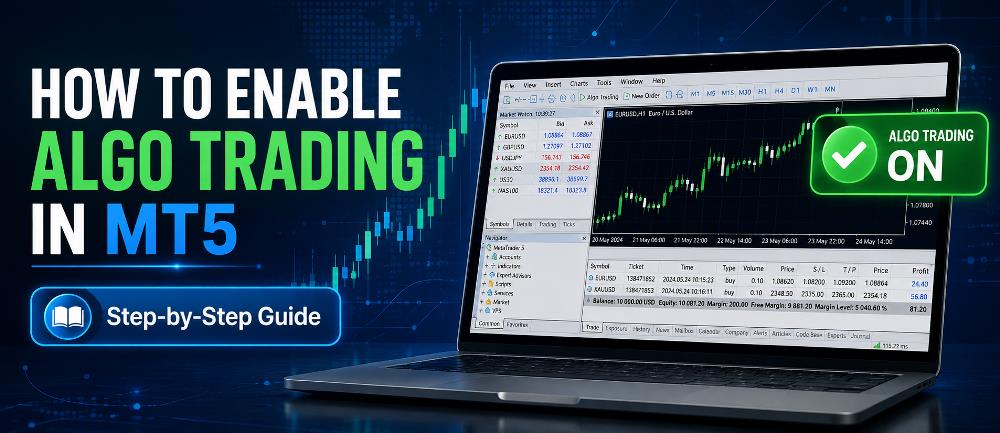
If you have installed an Expert Advisor in MetaTrader 5 but it is not opening trades, one of the first things you should check is whether Algo Trading is enabled.
MetaTrader 5 includes built-in security controls that prevent Expert Advisors from automatically executing trades unless the required permissions are enabled.
The important point is that MT5 uses more than one permission level. Automated trading must be allowed by the MetaTrader 5 platform, and the individual Expert Advisor must also have permission to trade.
In this guide, you will learn how to enable Algo Trading in MT5, how to check the individual EA permission, and what to troubleshoot if your Expert Advisor is running but still not placing trades.
If you have not installed your trading robot yet, follow our How to Install an Expert Advisor in MT5 guide first. How to Install an Expert Advisor in MT5
What Is Algo Trading in MT5?
Algo Trading, or algorithmic trading, allows computer programs to analyze markets and perform trading operations automatically according to programmed rules.
Within MetaTrader, these automated trading programs are commonly known as Expert Advisors or EAs.
An Expert Advisor may be programmed to:
- Analyze market conditions
- Identify BUY and SELL signals
- Open positions automatically
- Calculate position sizes
- Place Stop Loss and Take Profit levels
- Move stops to breakeven
- Apply trailing stops
- Manage multiple positions
- Close trades automatically
- Restrict trading according to time, spread, or other conditions
MetaTrader officially describes Expert Advisors as programs capable of automating analytical and trading processes.
If you are completely new to trading robots, our What Is an Expert Advisor in MetaTrader? Beginner’s Guide explains how EAs work before you start using one. What Is an Expert Advisor in MetaTrader?
How to Enable Algo Trading in MT5
There are two main permissions you need to understand:
1. Platform-level Algo Trading permission
2. Individual Expert Advisor trading permission
For normal automated trade execution, both must allow trading.
Let’s configure them step by step.
Step 1: Open MetaTrader 5
Launch the MetaTrader 5 desktop terminal and log in to the trading account on which you want to run the Expert Advisor.
Before proceeding, confirm that MT5 is connected to your broker.
You should also make sure you are using the correct account, particularly if you have several demo or live accounts.
Step 2: Find the Algo Trading Control
Look at the toolbar near the top of MetaTrader 5.
You should see the Algo Trading control.
This acts as the main platform-level permission for automated trading.
When automated trading is disabled globally, Expert Advisors may continue running and analyzing the market, but they cannot execute trading operations.
Step 3: Enable Algo Trading
Enable the Algo Trading control on the MT5 toolbar.
Think of this as the master switch for automated trading.
When this permission is disabled, no Expert Advisor can automatically execute trades through that MetaTrader terminal—even if the individual EA itself has permission to trade.
MetaTrader’s official documentation confirms that disabling Auto Trading at the platform level prevents all Expert Advisors from performing automated trading operations.
Step 4: Check the MT5 Expert Advisor Settings
Next, open:
Tools → Options → Expert Advisors
You can also press:
Ctrl + O
Then select the Expert Advisors tab.
Look for:
Allow Auto Trading
Make sure this option is enabled when you want your Expert Advisors to execute trades.
According to the official MetaTrader 5 platform documentation, this setting controls automated trading across the entire terminal. Official MetaTrader 5 Platform Settings Guide
Important MT5 Automated Trading Safety Settings
Inside:
Tools → Options → Expert Advisors
you may see several additional settings that automatically disable trading under certain circumstances.
These settings are designed to protect you from accidentally allowing an EA to trade after important platform changes.
Disable Automated Trading When Switching Accounts
If this protection is enabled, MT5 can disable automated trading whenever you log in to another trading account.
This is useful if, for example, you are running an EA on a demo account and then switch to a live account.
Without such protection, a trading robot could potentially continue operating on the newly selected account.
MetaTrader specifically provides this option as a protective mechanism.
For many traders, keeping this protection enabled makes sense.
Just remember to verify your Algo Trading status after changing accounts.
Disable Automated Trading When Switching Profiles
MetaTrader profiles can store groups of charts and Expert Advisors.
If this protection is enabled, changing profiles can disable automated trading.
That helps prevent an Expert Advisor contained in another profile from unexpectedly starting to trade after the profile is loaded.
Disable Automated Trading When Switching Chart Symbols or Period
MT5 can also automatically revoke trading permission when you change the symbol or timeframe of a chart containing an Expert Advisor.
For example, suppose your EA was configured on:
XAUUSD M15
and you change the chart to:
EURUSD H1
Depending on your settings, MT5 can disable the EA’s trading permission.
This safety option helps reduce the risk of an EA accidentally operating on a chart configuration for which it was not intended.
Step 5: Attach Your Expert Advisor to the Chart
If the EA is not already attached, open the Navigator window by selecting:
View → Navigator
or press:
Ctrl + N
Expand:
Expert Advisors
Then locate your Expert Advisor.
You can either:
- Double-click the EA, or
- Drag and drop it onto the required chart
MetaTrader will then open the Expert Advisor’s properties.
The official MetaTrader documentation also describes this as the standard method for starting a trading robot. Official MetaTrader Expert Advisor Guide
For the complete installation procedure, refer to our MT5 Expert Advisor installation tutorial. Install an Expert Advisor in MT5
Step 6: Enable Algo Trading for the Individual EA
This is one of the most important steps—and one that beginners frequently overlook.
The global MT5 Algo Trading setting can be enabled while an individual Expert Advisor is still prohibited from trading.
Open the EA’s properties and make sure:
Allow Algo Trading / Allow Auto Trading
is enabled for that Expert Advisor.
MetaTrader specifically provides automated trading controls at both the platform level and the individual EA level.
In simple terms:
Platform Algo Trading ON + EA permission OFF = EA cannot trade
And:
Platform Algo Trading OFF + EA permission ON = EA still cannot trade
For normal automated execution:
Platform permission ON + EA permission ON = EA is permitted to trade
Remember, however, that permission to trade does not necessarily mean the EA will immediately open a position.
Its programmed entry conditions must still be satisfied.
Step 7: Check the EA Input Settings
Before running the Expert Advisor, review its input parameters.
Depending on the EA, these may include:
- Lot size
- Risk percentage
- Stop Loss
- Take Profit
- Maximum open trades
- Trading session
- Maximum spread
- Breakeven settings
- Trailing-stop settings
- Entry filters
- Magic number
- Basket target
- News filter
Do not randomly change EA settings unless you understand what they control.
Even a seemingly small modification to position sizing, trade frequency, or risk parameters can significantly change the behavior of an automated trading strategy.
Step 8: Confirm That the Expert Advisor Is Running
After attaching the EA, check whether it initialized successfully.
Depending on the EA, you may see:
- EA name on the chart
- Trading dashboard
- Status message
- Trading information
- Signal indicators
- Risk information
- Chart objects
However, not every EA displays a dashboard.
A better technical check is to inspect the Experts and Journal tabs.
Check the Experts and Journal Tabs
Open the Toolbox at the bottom of MetaTrader 5.
Then inspect:
Experts
and:
Journal
These logs may contain information about:
- EA initialization
- Automated trading permissions
- Order execution
- Invalid settings
- Connection problems
- Trading errors
- License errors
- Broker restrictions
- Missing dependencies
If your EA appears to be running but is not opening trades, these logs should be among the first things you inspect.
Why Is My MT5 Expert Advisor Not Trading?
Enabling Algo Trading does not mean an EA should immediately open a trade.
The EA can only execute according to the trading logic programmed into it.
For example, your EA might require:
- A valid BUY or SELL signal
- A particular market trend
- Acceptable spread
- Correct trading session
- Sufficient free margin
- Maximum trades not reached
- Correct symbol
- Correct timeframe
- Valid EA license
- Confirmation from specific indicators
If those conditions have not occurred, doing nothing may be exactly what the Expert Advisor is supposed to do.
Common Reasons Algo Trading Does Not Work in MT5
1. Algo Trading Is Disabled Globally
Check the main Algo Trading permission.
If automated trading is disabled at platform level, your Expert Advisors will not be able to execute trades.
2. Algo Trading Is Disabled for the Individual EA
The individual EA has its own trading permission.
Even if the global MT5 setting is enabled, the EA cannot trade if its individual permission is disabled.
3. You Recently Switched Trading Accounts
If the appropriate protection is enabled, changing from one account to another may automatically disable automated trading.
Always recheck your Algo Trading status after switching accounts.
4. You Changed the Chart Symbol or Timeframe
Changing the chart’s symbol or timeframe may disable the individual Expert Advisor’s automated trading permission depending on your platform settings.
5. The EA Has Not Received a Trading Signal
This is one of the most common misunderstandings.
An EA can be:
- Installed correctly
- Running correctly
- Connected correctly
- Fully permitted to trade
and still place zero trades because its entry conditions have not yet occurred.
Do not assume the EA is malfunctioning simply because it has not opened a position.
6. Wrong Symbol
Some Expert Advisors are designed for specific financial instruments.
For example, an EA designed specifically for:
XAUUSD
may not be intended to run on:
EURUSD
Brokers can also use symbol variations such as:
- XAUUSD
- XAUUSDm
- XAUUSD.a
- XAUUSD.pro
Whether these differences matter depends on how the EA has been programmed.
7. Wrong Timeframe
Some trading robots rely heavily on the chart timeframe.
An EA designed for M15 may behave very differently if you attach it to H1.
Always check the developer’s recommended symbol and timeframe.
8. Spread Is Too High
Many EAs use a maximum spread filter.
When the current spread exceeds the programmed limit, the Expert Advisor may intentionally refuse to open new positions.
Spread can increase significantly during:
- Major economic announcements
- Market rollover
- Thin liquidity
- Sudden volatility
- Market opening periods
9. Trading Is Restricted by the Broker or Account
Automated trading permission is not controlled only by the EA and terminal.
MQL5 also provides account-level properties that indicate whether automated Expert Advisor trading is permitted for the trading account. A broker’s trade server can therefore restrict EA trading even when the platform settings appear correct.
If your settings appear correct but orders continue to fail, inspect the Experts and Journal logs for the actual rejection message.
Do You Need to Enable DLL Imports?
No—not automatically.
DLL access is different from Algo Trading permission.
Some advanced Expert Advisors use external DLL libraries, while many Expert Advisors do not require them at all.
MetaTrader explicitly warns that DLL imports should only be allowed for applications you trust because DLLs can execute functionality outside the normal MQL environment.
Therefore:
Do not enable DLL imports simply because you want to enable Algo Trading.
Only enable DLL access when your EA genuinely requires it and you trust the source of the software.
What About WebRequest?
WebRequest permission is also separate from normal Algo Trading.
Some Expert Advisors communicate with external web services for purposes such as:
- Licensing
- Economic-news feeds
- APIs
- Telegram integration
- External databases
- Remote signals
- Notifications
MetaTrader allows users to create a list of trusted URLs for applications requiring WebRequest access.
If your EA does not require an external service, you do not need to enable WebRequest merely to use automated trading.
Test Your EA Before Using Real Money
Successfully enabling Algo Trading only confirms that your Expert Advisor has permission to trade.
It does not prove that the strategy is profitable.
Before using an EA with real capital, consider testing it with MetaTrader 5’s built-in Strategy Tester.
Our detailed How to Backtest an Expert Advisor in MT5 tutorial explains how to test an EA using historical market data. How to Backtest an Expert Advisor in MT5
Backtesting can help you examine:
- Net profit
- Maximum drawdown
- Profit factor
- Number of trades
- Win rate
- Expected payoff
- Consecutive losses
- Equity behavior
The purpose of backtesting should not simply be to find the highest historical profit.
It should help you understand how the strategy behaves under different market conditions.
Forward-Test the EA Before Going Live
After backtesting, another useful stage is forward testing.
Instead of using historical data, forward testing allows the EA to operate under current market conditions, usually on a demo account.
Our guide to forward testing an Expert Advisor before live trading explains the process in more detail. How to Forward Test an Expert Advisor Before Live Trading
Forward testing lets you observe factors such as:
- Real-time spreads
- Signal timing
- Broker execution
- EA stability
- Trading-session behavior
- Stop-loss execution
- Take-profit execution
- Risk settings
- Platform connectivity
Remember that demo and live trading conditions can still differ.
Does MT5 Need to Stay Open for Algo Trading?
If your Expert Advisor is running locally on your computer, the MetaTrader environment hosting that EA must continue operating for the trading robot to monitor the market and react to new conditions.
Closing your local MT5 terminal stops the locally hosted Expert Advisor from running.
Traders who need their EAs operating continuously often use a Virtual Private Server or VPS.
Should You Leave Algo Trading Enabled All the Time?
Not necessarily.
There are situations where deliberately disabling Algo Trading may be appropriate.
For example:
- Changing EA settings
- Updating the EA
- Switching trading accounts
- Investigating unexpected behavior
- Changing strategies
- Performing platform maintenance
- Intentionally stopping new automated entries
The Algo Trading control provides a convenient way to stop automated trading without removing every Expert Advisor from your charts.
Is Algo Trading Safe?
Algorithmic trading automates the execution of trading rules.
It does not guarantee profitable results.
An Expert Advisor can systematically execute a well-designed strategy.
But it can just as efficiently execute a poorly designed strategy.
Before allowing any EA to trade real money, understand:
- How the EA enters trades
- How positions are closed
- Lot-size calculation
- Maximum risk per trade
- Stop-loss behavior
- Maximum simultaneous trades
- Historical drawdown
- Whether averaging is used
- Whether grid trading is used
- Whether lot sizes increase after losses
- Supported symbols
- Supported timeframes
- Trading-session restrictions
If you want a broader introduction to automated trading before using EAs, read our Algorithmic Trading for Beginners guide. Algorithmic Trading for Beginners
You can also consult MetaTrader’s official overview of its algorithmic trading environment. MetaTrader 5 Algorithmic Trading – Official Documentation
MT5 Algo Trading Checklist
Before expecting your Expert Advisor to trade, check the following:
- ✅ MetaTrader 5 is connected to your broker
- ✅ Correct trading account is active
- ✅ EA is installed correctly
- ✅ EA is attached to the correct chart
- ✅ Correct trading symbol is selected
- ✅ Correct timeframe is selected
- ✅ Platform Algo Trading is enabled
- ✅ Individual EA trading permission is enabled
- ✅ EA input parameters are correct
- ✅ Spread is within the EA’s allowed limit
- ✅ Account has sufficient free margin
- ✅ EA license is valid, if required
- ✅ Required trading session is active
- ✅ Experts and Journal logs show no critical errors
- ✅ A valid EA trading signal has occurred
If all these conditions are satisfied, your EA should be able to execute trades when its programmed entry criteria occur.
Frequently Asked Questions
How do I enable Algo Trading in MT5?
Open MetaTrader 5 and enable the Algo Trading control. Then go to:
Tools → Options → Expert Advisors
and make sure Allow Auto Trading is enabled.
Finally, check that the individual Expert Advisor itself is also permitted to trade.
Why is my EA not trading even though Algo Trading is enabled?
Possible causes include:
- Individual EA trading permission disabled
- No valid trading signal
- High spread
- Wrong symbol
- Wrong timeframe
- Insufficient margin
- Trading-session restrictions
- Broker restrictions
- EA licensing problems
- Incorrect input parameters
Check the Experts and Journal tabs for diagnostic messages.
Can an EA run while Algo Trading is disabled?
Yes, in a limited sense.
An EA can continue running analytical functions while automated trading is prohibited, but it cannot perform automated trading operations when the necessary trade permission is disabled.
Is Algo Trading the Same as an Expert Advisor?
No.
Algo Trading refers to using programmed rules to automate trading activity.
An Expert Advisor is a MetaTrader program capable of implementing those automated trading rules.
Should I Enable DLL Imports?
Only if your Expert Advisor specifically requires DLL files and you trust the software.
DLL permission is not required simply to enable normal Algo Trading. MetaTrader advises against allowing DLL access for applications from unknown or untrusted sources.
Can I Run Several Expert Advisors in MT5?
Yes.
You can run multiple Expert Advisors in MetaTrader 5 by attaching them to different charts.
However, MetaTrader permits only one Expert Advisor on a particular chart at a time. Attaching another EA to the same chart removes the previous EA from that chart.
If you operate several trading robots simultaneously, also consider their combined account exposure and margin requirements.
Final Thoughts
Learning how to enable Algo Trading in MT5 is an essential step for anyone who wants to use Expert Advisors.
The most important point to remember is that MT5 uses multiple permission layers.
For an Expert Advisor to execute automated trades normally:
MT5 Algo Trading must be enabled + the individual EA must be allowed to trade.
If your Expert Advisor is installed but not opening positions, do not immediately assume the EA is broken.
Check:
- Platform Algo Trading permission
- Individual EA permission
- Experts and Journal logs
- Correct symbol
- Correct timeframe
- Spread
- Trading session
- Broker restrictions
- Account permissions
- EA-specific entry conditions
If you still need to set up your trading robot, follow our step-by-step MT5 Expert Advisor installation guide. How to Install an Expert Advisor in MT5
Once the EA is installed and running, the next logical step is to evaluate its behavior using the MetaTrader 5 Strategy Tester before exposing real capital to the strategy. How to Backtest an Expert Advisor in MT5
Algorithmic trading can make execution faster, more systematic, and less dependent on manual intervention—but sound strategy design, testing, risk management, and ongoing supervision remain essential.



Be the first to comment