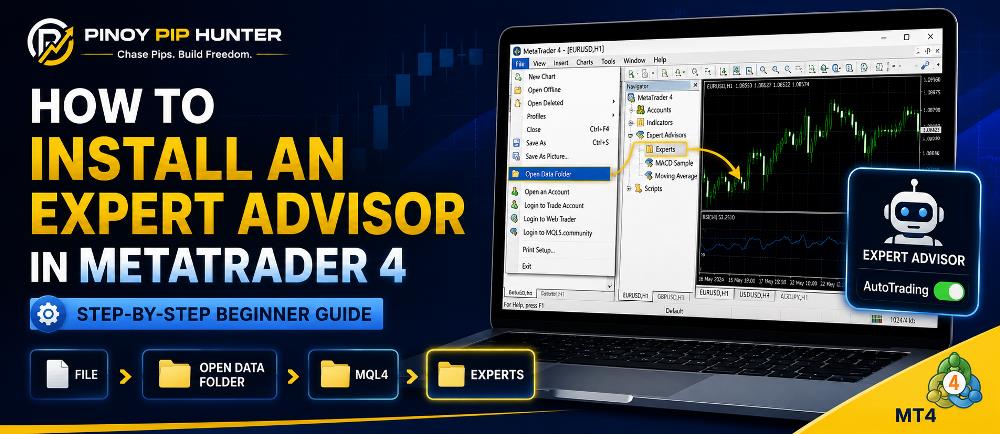
Learning how to install an Expert Advisor in MT4 is one of the first practical steps toward automated forex trading.
An Expert Advisor, usually called an EA, is a trading program that runs inside MetaTrader 4 and can analyze the market, generate signals, manage positions, or automatically execute trades according to predefined rules.
The installation process is not difficult, but beginners often run into problems because they put the EA file in the wrong folder, use an MT5 file instead of an MT4 file, forget to enable AutoTrading, or attach the EA to the wrong chart.
In this step-by-step guide, you will learn:
- How to install an Expert Advisor in MetaTrader 4
- Where MT4 EA files should be placed
- The difference between
.mq4and.ex4files - How to refresh the MT4 Navigator
- How to attach an EA to a chart
- How to enable AutoTrading
- How to confirm that an Expert Advisor is running
- Why an MT4 EA may not appear
- Why an EA may be running but not opening trades
- What to check before using an EA with real money
If you are completely new to automated trading, start with our guide on what an Expert Advisor in MetaTrader is.
What Do You Need Before Installing an EA in MT4?
Before you begin, you normally need three things:
- MetaTrader 4 installed on your computer
- An Expert Advisor specifically designed for MT4
- A trading account connected to your MT4 terminal
Your trading account may be a demo or live account, depending on your broker and the EA.
For beginners, testing on a demo account first is generally the more sensible approach. Installation only confirms that MetaTrader can load the program. It does not prove that the trading strategy is profitable or appropriate for your account.
You should also verify that the EA was developed specifically for MetaTrader 4.
MT4 and MT5 both support automated trading, but they use different programming environments and executable file formats. An MT5 EA cannot simply be copied into MT4 and expected to work.
If you are still deciding which platform to use, read our comparison of MetaTrader 4 vs MetaTrader 5 for automated trading.
What File Type Does an MT4 Expert Advisor Use?
MT4 Expert Advisors commonly use two file extensions:
.MQ4 File
An .mq4 file contains the MQL4 source code of an Expert Advisor.
This is the editable source file developers use when creating or modifying an MT4 trading robot.
If you have the source code, you can open it in MetaEditor and compile it.
.EX4 File
An .ex4 file is the compiled executable version of an MQL4 program.
This is normally the file MetaTrader 4 runs.
If you purchase or download a commercial Expert Advisor, the developer may provide only the EX4 version to protect the proprietary trading logic.
You normally do not need the MQ4 source code simply to operate an EA when a valid EX4 file has already been supplied.
How to Install an Expert Advisor in MT4
Here is the standard manual MT4 Expert Advisor installation process.
Step 1: Open MetaTrader 4
Launch the MetaTrader 4 desktop terminal where you want to run the Expert Advisor.
If you have MT4 installations from several brokers, make sure you are opening the correct terminal.
This matters because each installation can use its own data directory.
Installing an EA in one broker’s MT4 terminal does not automatically install it in another terminal.
Step 2: Open the MT4 Data Folder
From the top menu in MetaTrader 4, click:
File → Open Data Folder
A Windows folder will open.
This is the safest way to locate the correct working directory for that specific MT4 installation.
Avoid manually guessing where MetaTrader is installed on your computer. The program installation directory and the terminal’s active data directory may not be the same place.
Step 3: Open the MQL4 Folder
Inside the MetaTrader Data Folder, open:
MQL4
You will see several folders used by different MT4 program types.
Typical folders include:
- Experts
- Indicators
- Scripts
- Libraries
- Include
- Files
- Presets
Because we are installing an Expert Advisor, we need the:
Experts folder.
Step 4: Copy the EA Into MQL4 → Experts
Open:
MQL4 → Experts
Copy your MT4 EA file into this folder.
For example:
MyTradingEA.ex4
or:
MyTradingEA.mq4
You can also create subfolders if you want to keep your Expert Advisors organized.
For example:
MQL4 → Experts → Pinoy Pip Hunter
Keeping EAs organized becomes useful when you eventually have several automated trading systems installed.
The official MetaTrader 4 Expert Advisor documentation explains how Expert Advisors operate inside the MT4 automated-trading environment.
Step 5: Return to MetaTrader 4
After copying the Expert Advisor file, return to MetaTrader 4.
Do not worry if the new EA does not immediately appear.
MT4 may need to rescan the Experts directory.
Step 6: Refresh the Navigator
Open the Navigator window.
If it is not visible, use:
View → Navigator
You can also use the keyboard shortcut:
Ctrl + N
Find the Expert Advisors section.
Right-click it and choose:
Refresh
Your newly installed Expert Advisor should now appear in the list.
If it still does not appear, close and restart MetaTrader 4.
Restarting the terminal forces MT4 to reload available programs.
Step 7: Open the Correct Trading Chart
Now open the market chart the EA is intended to trade.
Examples include:
- EURUSD
- GBPUSD
- USDJPY
- XAUUSD
- BTCUSD, if supported by your MT4 broker
Then select the timeframe recommended for the Expert Advisor.
Examples include:
- M1
- M5
- M15
- M30
- H1
- H4
- D1
The correct symbol and timeframe depend on the strategy.
Do not assume that an EA designed for EURUSD M15 can automatically be placed on XAUUSD H1.
Some Expert Advisors read the current chart symbol and timeframe as part of their trading logic.
Always check the developer’s instructions.
Step 8: Attach the Expert Advisor to the Chart
In the Navigator:
Expert Advisors → Select Your EA
Then either:
- Drag the EA onto the chart, or
- Double-click the EA name
The Expert Advisor properties window should appear.
This allows you to review the program’s permissions and trading parameters before activating it.
Step 9: Review the EA Input Settings
Most Expert Advisors have configurable inputs.
Depending on the trading system, these may include:
- Fixed lot size
- Risk percentage
- Stop loss
- Take profit
- Trailing stop
- Break-even settings
- Maximum open trades
- Trading hours
- Maximum spread
- Entry filters
- Indicator settings
- Magic number
- Basket profit target
Do not randomly change these parameters.
A small-looking adjustment can dramatically change trading exposure.
For example, changing a lot size from 0.01 to 0.10 increases the nominal position size by ten times.
Understand the settings before changing them.
Step 10: Allow Live Trading for the EA
Inside the EA properties window, check the relevant trading permissions.
An important MT4 setting is:
Allow live trading
The wording may sound as though it refers only to a live account, but it is the permission that allows the Expert Advisor to send trading instructions through the terminal.
An EA may therefore be correctly installed and visible on the chart while still being prevented from placing trades if its trading permissions are disabled.
You should also be cautious with options such as DLL imports.
Only allow DLL usage when it is genuinely required by the EA and you trust the software source.
Step 11: Enable AutoTrading in MetaTrader 4
Look at the main MT4 toolbar.
You should see the AutoTrading button.
MetaTrader 4 provides this control as a global switch for automated trading.
If AutoTrading is disabled, an EA can remain loaded but be prevented from executing trading operations.
MetaQuotes explains this behavior in its official MT4 Expert Advisor setup guide.
This means you should normally check both:
- The Expert Advisor’s individual trading permission
- The platform’s AutoTrading setting
Both must be configured appropriately if the EA is expected to place orders automatically.
Step 12: Confirm That the Expert Advisor Is Running
After attaching the EA, check the upper-right area of the MT4 chart.
Depending on your version and configuration, MT4 may display the Expert Advisor name and an icon indicating its operating status.
Some EAs also display their own dashboard containing information such as:
- EA status
- Current signal
- Lot size
- Open positions
- Profit or loss
- Trading session
- Spread
- Risk settings
However, not every EA has a graphical dashboard.
The absence of a dashboard does not automatically mean that the Expert Advisor is inactive.
For a better diagnosis, inspect the Experts and Journal tabs in the MT4 Terminal window.
These logs can show messages relating to:
- EA initialization
- AutoTrading status
- Trade permissions
- Invalid settings
- Connection errors
- Order execution
- Licensing errors
- Program errors
How to Install an MQ4 Expert Advisor
If you receive an MQ4 source file instead of an EX4 executable file:
- Open File → Open Data Folder
- Go to MQL4 → Experts
- Copy the
.mq4file there - Open the file in MetaEditor
- Compile the program
- Check for compilation errors
- Return to MT4
- Refresh Expert Advisors in Navigator
When compilation succeeds, MetaEditor creates the executable file needed by MetaTrader.
If the source code contains errors, the EA may not compile or operate correctly.
How to Install an EX4 Expert Advisor
Installing an EX4 file is generally simpler because the EA has already been compiled.
Copy the file into:
MQL4 → Experts
Then:
- Return to MT4
- Refresh the Navigator
- Locate the Expert Advisor
- Open the required trading chart
- Attach the EA
- Configure the inputs
- Allow the required trading permissions
- Enable AutoTrading
You normally do not need to compile an EX4 file.
MT4 Expert Advisor Not Showing: What Should You Check?
One of the most common searches beginners make after installation is “MT4 EA not showing.”
If your Expert Advisor does not appear in Navigator, work through these checks.
1. Check the File Location
The EA should normally be inside the active terminal’s:
MQL4 → Experts
Use:
File → Open Data Folder
from the exact MT4 terminal where you want to run the EA.
This is especially important if several MT4 terminals are installed.
2. Make Sure It Is an MT4 EA
MT4 commonly uses:
.mq4.ex4
An .mq5 or .ex5 program belongs to the MetaTrader 5 environment.
If you received an MT5 EA, you need an MT4-compatible version.
3. Refresh Navigator
Right-click:
Expert Advisors → Refresh
4. Restart MT4
Close MetaTrader completely and reopen it.
5. Compile the MQ4 File
If you were given source code, open it in MetaEditor and compile it.
Compilation errors may prevent the executable EA from being generated.
6. Check Supporting Files
Some Expert Advisors require additional:
- Indicators
- Libraries
- Preset files
- Data files
- DLL components
Follow the developer’s installation instructions if additional files are supplied.
EA Is Installed but AutoTrading Does Not Work
Another common situation is:
“My EA is installed, but it is not trading.”
This does not automatically mean something is wrong.
An Expert Advisor may be working perfectly but waiting for its programmed entry conditions.
For example, an EA could require:
- A bullish or bearish market condition
- A particular indicator signal
- Acceptable spread
- A specific trading session
- A maximum number of existing trades
- Several confirmation rules
If those conditions are not satisfied, the correct action for the EA may be to do nothing.
Reasons an MT4 EA May Not Open Trades
If the Expert Advisor remains inactive for longer than expected, check:
- AutoTrading is enabled
- Allow live trading is enabled for the EA
- The trading account is connected
- The market is open
- The correct symbol is being used
- The correct timeframe is selected
- The EA’s lot size is valid
- The account has sufficient free margin
- Spread is below the EA’s maximum allowed spread
- Maximum open trades has not been reached
- Trading-session filters are not blocking entries
- The EA’s license is valid, if applicable
- Broker symbol suffixes are supported
- Required indicators are installed
- Required DLLs or supporting files are available
- The EA has actually received a valid entry signal
The Experts and Journal tabs are usually the best places to begin troubleshooting.
Should You Use an EA on a Live Account Immediately?
No.
Successfully installing an Expert Advisor proves only that the software can be loaded into MetaTrader.
It does not prove that the trading strategy will make money.
Before putting real capital at risk, understand:
- How the EA opens trades
- How it closes trades
- Its position-sizing method
- Whether it always uses a stop loss
- Its maximum number of positions
- Its historical drawdown
- Whether it uses grid trading
- Whether it uses martingale-style sizing
- Which symbols it is designed for
- Which timeframe it requires
- How it behaves during volatile markets
If you are unfamiliar with drawdown, read our beginner’s guide to drawdown in forex trading.
Backtest Before Risking Real Money
Whenever possible, evaluate an automated strategy before committing real capital.
Backtesting lets you examine how a strategy behaved using historical market data.
Important metrics may include:
- Net profit
- Maximum drawdown
- Profit factor
- Number of trades
- Win rate
- Average winning trade
- Average losing trade
- Consecutive losses
Historical performance cannot guarantee future results, but it can expose weaknesses that may not be obvious from a marketing screenshot or short trading history.
Our existing tutorial explains how to backtest an Expert Advisor in MetaTrader 5. We will also cover MT4 backtesting separately as part of this roadmap.
Forward-Test the EA on Demo
After installation and historical testing, consider running the Expert Advisor on a demo account under current market conditions.
This is commonly called forward testing.
Forward testing can help you observe:
- Real-time spreads
- Broker execution
- Signal timing
- Trading-session behavior
- Internet stability
- Platform operation
- EA settings
- Stop-loss and take-profit behavior
A system can behave differently in forward testing than it did in a historical backtest.
Does MT4 Need to Stay Open for an EA to Trade?
For a locally running Expert Advisor, MetaTrader 4 normally needs to remain running and connected.
If you close MT4 or shut down the computer hosting it, the locally running EA can no longer process new market events through that terminal.
This is one reason many automated traders use a Virtual Private Server, or VPS.
A VPS can keep MetaTrader running remotely without leaving your personal computer turned on continuously.
Can You Run Multiple Expert Advisors in MT4?
Yes, but you should understand the combined risk.
You may have several EAs running on different charts, symbols, or strategies.
When multiple Expert Advisors trade the same account, consider:
- Combined lot exposure
- Margin usage
- Correlated positions
- Overall account drawdown
- Conflicting strategies
- Magic-number settings
- Simultaneous buy and sell positions
A group of individually moderate-risk EAs can still create high total account exposure when they trade simultaneously.
Risk should therefore be assessed at the account level, not only EA by EA.
Common MT4 EA Installation Mistakes
Installing an MT5 EA in MT4
MT4 and MT5 programs are not directly interchangeable.
Use the correct platform version.
Copying the File Into the Wrong Folder
Use File → Open Data Folder → MQL4 → Experts rather than guessing the location.
Independent installation guidance from CMC Markets describes the same standard MT4 installation route.
Forgetting to Refresh Navigator
A newly copied EA may not appear until Navigator is refreshed or MT4 is restarted.
Forgetting to Enable AutoTrading
The EA can be installed correctly but still be blocked from opening positions.
Choosing the Wrong Symbol
An EA designed for EURUSD may not be designed for gold.
Choosing the Wrong Timeframe
Some Expert Advisors depend on the chart timeframe.
Changing Inputs Without Understanding Them
Increasing lot size, loosening risk controls, or changing trade limits can significantly alter the system.
Going Straight to a Live Account
Successful installation is not the same as successful strategy validation.
Test first.
How to Install an EA in MT4: Quick Checklist
For reference, here is the complete process:
- Open MetaTrader 4.
- Click File → Open Data Folder.
- Open MQL4 → Experts.
- Copy the
.ex4or.mq4EA file into the Experts folder. - Return to MT4.
- Open Navigator.
- Refresh Expert Advisors.
- Open the correct trading symbol and timeframe.
- Drag the EA onto the chart.
- Review its input parameters.
- Enable the required trading permission.
- Enable AutoTrading.
- Check the Experts and Journal logs.
- Test the EA before considering live trading.
Frequently Asked Questions
How do I install an Expert Advisor in MT4?
Open MetaTrader 4 and select File → Open Data Folder → MQL4 → Experts. Copy your MT4 EA into the Experts folder, return to MT4, refresh Expert Advisors in Navigator, attach the EA to the appropriate chart, configure its settings, and enable AutoTrading if automatic trade execution is required.
Where do I put an EA file in MetaTrader 4?
The normal location for manually installed Expert Advisors is:
MQL4 → Experts
inside the active MT4 Data Folder.
What is the difference between MQ4 and EX4?
MQ4 contains MQL4 source code. EX4 is the compiled executable file used by MetaTrader 4.
Can I install an MT5 EA in MT4?
No. MT4 and MT5 use different program formats and programming environments. You normally need a version of the Expert Advisor developed specifically for MT4.
Why is my Expert Advisor not showing in MT4?
Common causes include placing the file in the wrong Data Folder, using the wrong file type, failing to compile an MQ4 source file, or not refreshing the Navigator after installation.
Why is my MT4 EA not opening trades?
Possible reasons include disabled AutoTrading, missing trading permission, incorrect EA settings, wrong symbol or timeframe, spread restrictions, insufficient margin, trading-session filters, licensing problems, or simply that no valid entry signal has occurred.
Does MT4 have to stay open for an EA to work?
A locally running EA requires the MT4 environment hosting it to remain active and connected. Traders who need continuous operation often use a VPS.
Is installing an Expert Advisor safe?
Installation itself is straightforward, but the EA may still carry trading or software risks. Use software from sources you trust, understand its permissions and strategy, and test it before risking real money.
Can an Expert Advisor guarantee profits?
No. An Expert Advisor is a tool for automating trading rules. Automated execution does not eliminate market risk and cannot guarantee future profits.
Final Thoughts
Learning how to install an Expert Advisor in MetaTrader 4 is relatively simple once you understand the correct MT4 folder structure and trading permissions.
The core process is:
File → Open Data Folder → MQL4 → Experts → Copy EA → Refresh Navigator → Attach to Chart → Enable AutoTrading
The more important step comes after installation.
Before allowing any forex robot to trade real money, understand how it works, verify the settings, assess its risk management, review historical performance, and forward-test it under current market conditions.
Automation can make trade execution more systematic, but it cannot turn a poor trading strategy into a profitable one.
If you are using the newer platform instead, see our complete guide on how to install an Expert Advisor in MetaTrader 5.
At Pinoy Pip Hunter, our goal is to make MetaTrader, Expert Advisors, forex automation, gold trading, and systematic risk management easier to understand for traders who want to build a more disciplined trading process.


Be the first to comment