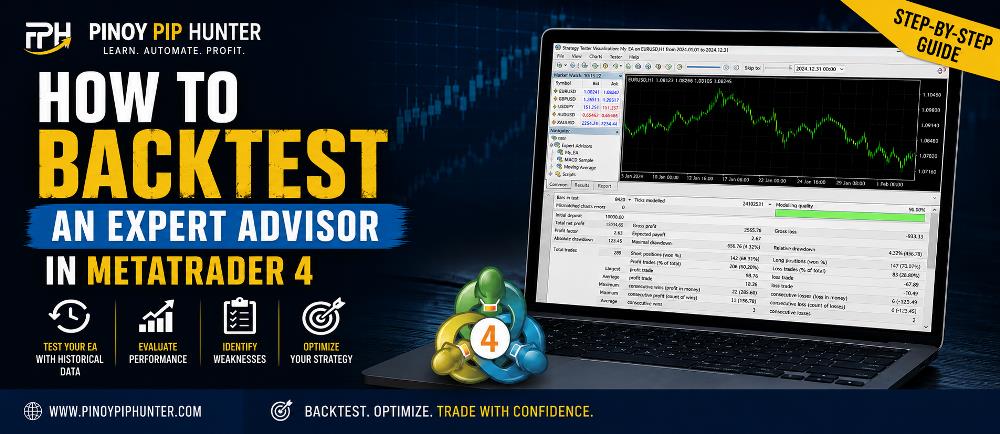
Before using an automated trading strategy with real money, one of the most important steps is learning how to backtest an Expert Advisor in MT4.
Backtesting allows you to run an Expert Advisor, commonly called an EA, against historical market data and examine how the trading system would have behaved in the past.
MetaTrader 4 includes a built-in Strategy Tester designed specifically for testing and optimizing Expert Advisors. According to the official MetaTrader 4 Strategy Tester documentation, traders can use the tester to evaluate automated strategies using historical quote data before deploying them under live trading conditions.
Backtesting cannot predict whether an EA will be profitable in the future. However, it can help you determine whether the trading robot behaves according to its programmed rules and whether its historical risk characteristics are acceptable.
In this guide, you will learn:
- How to open the MT4 Strategy Tester
- How to select an Expert Advisor
- How to configure the symbol and timeframe
- Which MT4 modeling method to use
- How to choose a historical testing period
- How to configure EA inputs
- How to use Visual Mode
- How to interpret an MT4 backtest report
- Which backtesting mistakes beginners should avoid
If you are still learning how automated trading programs work, start with our What Is an Expert Advisor in MetaTrader? A Beginner’s Guide.
What Is Backtesting in MetaTrader 4?
Backtesting is the process of applying an automated trading strategy to historical market data.
Instead of waiting weeks or months to observe an Expert Advisor under live market conditions, MT4 can simulate how the EA would have reacted to previous price movements.
Depending on how the trading robot is programmed, the backtest may simulate:
- Opening buy positions
- Opening sell positions
- Setting stop losses
- Setting take profits
- Applying trailing stops
- Managing open positions
- Closing positions
- Responding to technical indicators
- Managing several trades simultaneously
MetaTrader provides a dedicated testing environment for this purpose through its MT4 Strategy Tester.
This makes backtesting particularly useful during EA development because you can identify obvious strategy or programming problems before considering real-money trading.
Why Should You Backtest an Expert Advisor?
A strategy may look logical on paper but behave very differently when its rules are applied to thousands of historical price movements.
Backtesting can help answer important questions such as:
- Does the EA enter trades at the intended time?
- Are buy and sell conditions working correctly?
- Does the stop loss function properly?
- Does the take profit work as expected?
- How frequently does the strategy trade?
- What was the historical maximum drawdown?
- How does it behave during volatile markets?
- Does performance remain consistent across different years?
- Does the strategy depend on only a few unusually profitable trades?
- Does the EA behave incorrectly under certain conditions?
The purpose should not simply be to find the backtest showing the highest historical profit.
A useful backtest should help you understand the EA’s behavior, consistency, and risk.
If you are unfamiliar with automated trading systems, our Expert Advisor beginner’s guide explains what an EA is and how it operates inside MetaTrader.
What Is the MT4 Strategy Tester?
The MetaTrader 4 Strategy Tester is the platform’s built-in environment for testing automated trading strategies.
It allows traders to:
- Run historical EA tests
- Select different symbols
- Test different timeframes
- Change Expert Advisor input settings
- Compare different parameter combinations
- Perform optimization
- Use Visual Mode
- Review simulated transactions
- Analyze graphical test results
- Generate performance reports
MetaTrader provides detailed instructions for configuring these options in its official MT4 Strategy Tester setup guide.
If you also use MetaTrader 5, you may want to compare this process with our How to Backtest an Expert Advisor in MT5: Step-by-Step Guide.
How to Backtest an Expert Advisor in MT4
Here is the complete process.
Step 1: Make Sure the Expert Advisor Is Installed
Before MT4 can backtest an EA, the program must already be recognized by MetaTrader.
Open the Navigator panel and locate:
Expert Advisors
Your EA should appear underneath this section.
MetaTrader 4 Expert Advisors normally use:
.mq4— MQL4 source file.ex4— compiled Expert Advisor file
If the EA does not appear, go to:
File → Open Data Folder → MQL4 → Experts
Confirm that the EA file is inside the appropriate Experts folder.
Then return to MetaTrader 4 and either refresh the Navigator or restart the platform.
If you want a better understanding of how Expert Advisors interact with MetaTrader, see our beginner’s guide to Expert Advisors.
Step 2: Open the MT4 Strategy Tester
There are two common ways to open Strategy Tester.
From the MT4 menu, select:
View → Strategy Tester
Or use the keyboard shortcut:
Ctrl + R
The Strategy Tester panel should appear at the bottom of the MetaTrader terminal.
The official MetaTrader Strategy Tester documentation also explains the platform’s historical testing environment.
Step 3: Select the Expert Advisor
Inside Strategy Tester, locate the Expert Advisor field.
Select the EA you want to test.
If you have several Expert Advisors installed, verify that you selected the correct trading robot before starting.
Different Expert Advisors may use completely different:
- Entry rules
- Exit rules
- Stop-loss systems
- Take-profit systems
- Lot-sizing methods
- Indicators
- Trading sessions
- Trailing stops
- Risk-management rules
Selecting the wrong EA invalidates the entire test.
Step 4: Select the Trading Symbol
Next, select the financial instrument you want to test.
Examples include:
- EURUSD
- GBPUSD
- USDJPY
- XAUUSD
- Other broker-supported symbols
Symbol names can vary between brokers.
For example, Gold may appear as:
- XAUUSD
- XAUUSDm
- GOLD
- GOLD.pro
Try to use the same type of instrument and broker environment you expect to use during forward testing.
Step 5: Choose the Correct Timeframe
Select the Period or chart timeframe.
Common MT4 timeframes include:
- M1
- M5
- M15
- M30
- H1
- H4
- D1
If an Expert Advisor was designed specifically for M5, testing it on H1 can produce completely different behavior.
Use the timeframe intended by the EA unless you are deliberately researching how the strategy performs on another timeframe.
Step 6: Choose the MT4 Modeling Method
One of the most important settings is the Model.
MetaTrader 4 uses different methods for reconstructing historical price movements during a test.
MetaTrader explains these settings in its MT4 Strategy Tester Setup documentation.
Every Tick
Every Tick is the most detailed standard MT4 modeling method.
It is generally more appropriate for Expert Advisors that depend on price movement occurring inside individual candles.
Examples include:
- Scalping EAs
- Tight stop-loss systems
- Trailing-stop strategies
- Intrabar entries
- Tick-sensitive strategies
The disadvantage is that the test usually takes longer.
Control Points
Control Points uses a less detailed simulation.
It can be useful for preliminary testing, but it should generally not be treated as the final validation method for an EA whose results depend heavily on intrabar movements.
Open Prices Only
Open Prices Only is faster.
It may be appropriate for strategies that evaluate their conditions only when a new candle begins.
For example, an EA programmed to check all entry conditions only once at the opening of each H1 candle may sometimes be suitable for this method.
However, this model may not be appropriate for strategies involving:
- Intrabar entries
- Tight stops
- Tick-sensitive indicators
- Precise trailing stops
- Scalping
- Complex trade management
Always select the modeling method according to how the Expert Advisor actually operates.
Step 7: Select the Historical Testing Period
Enable Use Date if you want to specify a historical period.
For example:
From: January 1, 2022
To: December 31, 2025
A backtest covering only several weeks usually provides limited information.
Where possible, test the EA through different market environments, including:
- Strong trends
- Sideways markets
- High volatility
- Low volatility
- Different trading years
- Major market disruptions
There is no single number of years that automatically makes a backtest reliable.
A high-frequency system may generate thousands of trades relatively quickly, while a slower strategy may require several years to produce a meaningful sample.
Step 8: Configure the Spread
Spread is an important trading cost.
A strategy that earns only a small amount per trade may look excellent under an unrealistically low spread but perform very differently under normal broker conditions.
This is particularly important for:
- Scalping EAs
- Short-duration trades
- High-frequency systems
- Small take-profit targets
Use trading assumptions that reasonably reflect the environment where the EA may eventually operate.
Do not deliberately choose unrealistically favorable settings simply because they produce a better historical result.
Step 9: Configure Expert Properties
Click:
Expert Properties
This area allows you to configure the simulated trading account and the Expert Advisor’s input variables.
MetaTrader explains these settings in its official Strategy Tester Properties documentation.
Testing Settings
Configure an initial deposit that reasonably reflects your intended trading setup.
For example:
Initial deposit: $10,000
Using an unrealistic account balance can distort how you interpret position sizes, margin requirements, and drawdown.
EA Inputs
Open the Inputs tab.
Depending on the Expert Advisor, available parameters may include:
- Lot size
- Risk percentage
- Stop loss
- Take profit
- Trailing-stop start
- Trailing-stop distance
- Maximum trades
- Trading hours
- Indicator settings
- Entry filters
- Maximum spread
For your initial baseline test, start with the EA’s intended default settings.
Keep records of every parameter combination you test.
Step 10: Start the Backtest
Once the configuration is complete, click:
Start
MetaTrader 4 will process the historical data and simulate the Expert Advisor’s trading logic.
Testing time depends on:
- Historical period
- Timeframe
- Modeling method
- EA complexity
- Number of trades
- Computer performance
- Historical-data availability
A basic test may finish quickly.
A detailed multi-year backtest using more intensive modeling can take considerably longer.
Step 11: Use Visual Mode
One of MT4’s most useful backtesting features is Visual Mode.
Enable:
Visual mode
before starting the test.
MetaTrader will display the historical chart while the EA trades.
This lets you visually inspect:
- Buy entries
- Sell entries
- Stop-loss placement
- Take-profit placement
- Trade exits
- Indicator behavior
- Trailing stops
- Multiple positions
- Unexpected trades
The official MetaTrader Strategy Tester page describes visual testing as part of the platform’s strategy-testing capabilities.
Visual Mode can reveal problems that may not be obvious from the final performance report.
For example:
- An entry occurs one candle too early
- A trading filter is ignored
- The stop loss is placed incorrectly
- Duplicate trades are opened
- A trailing stop activates too early
- A trade closes for an unintended reason
Backtesting should therefore be used not only to evaluate historical profitability but also to verify that the EA performs exactly as intended.
Step 12: Review the Results
After the test finishes, review the simulated trades.
Do not look only at the final account balance.
Check:
- Entry prices
- Exit prices
- Stop-loss execution
- Take-profit execution
- Lot sizes
- Buy and sell behavior
- Trade frequency
If anything looks suspicious, rerun the test using Visual Mode.
Step 13: Examine the Graph
The graph provides a visual representation of the simulated account performance.
Pay attention to the overall shape rather than simply looking at where the graph finishes.
Look for:
- Deep declines
- Long stagnation periods
- Sudden vertical gains
- Repeated large losses
- Profit concentrated in one short period
- Extended periods of weak performance
A smooth equity curve does not guarantee that a strategy will remain profitable.
However, unusual patterns deserve further investigation.
Step 14: Understand the MT4 Backtest Report
The report contains some of the most important statistics used to evaluate an Expert Advisor.
Never judge a backtest using net profit alone.
Total Net Profit
Total Net Profit represents the historical profit or loss after simulated winning and losing trades are combined.
A large net profit may appear impressive.
However, it tells you very little about the amount of risk required to produce the result.
Profit Factor
Profit Factor compares gross profit with gross loss.
A simplified formula is:
Profit Factor = Gross Profit ÷ Gross Loss
A value above 1 means historical gross profit exceeded historical gross loss during that particular test.
However, Profit Factor should always be considered together with drawdown and sample size.
Maximum Drawdown
Drawdown measures how far an account declines from a previous peak.
This is one of the most important risk measurements when evaluating an Expert Advisor.
Consider two hypothetical systems:
EA A
- Return: 50%
- Maximum Drawdown: 12%
EA B
- Return: 50%
- Maximum Drawdown: 70%
Although both generated the same hypothetical return, their historical risk profiles were dramatically different.
For a detailed explanation of this metric, read What Is Drawdown in Forex Trading? A Beginner’s Guide.
Understanding drawdown is particularly important when evaluating automated systems because an EA may generate attractive profits while exposing an account to unacceptable losses.
Total Trades
The number of trades matters because sample size influences how much information a backtest provides.
An EA producing excellent results from only ten trades gives you relatively little evidence about how it behaves across different market conditions.
There is no universal minimum trade count, but a larger and more varied sample usually provides more information.
Win Rate
Win rate represents the percentage of profitable trades.
A high win rate does not automatically mean a strategy is safe or profitable.
For example:
- 90% winning trades
- Very small average win
- Very large occasional loss
can still create poor overall performance.
Expected Payoff
Expected payoff provides an indication of the average historical result per trade.
Strategies with very small average profits may be particularly sensitive to:
- Spread
- Commission
- Slippage
- Execution delays
What Does Modeling Quality Mean in MT4?
Some MT4 reports display a Modeling Quality figure.
A high modeling-quality percentage should not be interpreted as proof that an Expert Advisor is profitable or robust.
It relates primarily to the historical data and how MetaTrader reconstructed price movements for the simulation.
It cannot tell you whether:
- The strategy is overfitted
- The trading concept is robust
- Future markets will behave similarly
- Your broker will provide identical execution
- Live spreads will match the test
- Slippage will remain the same
Data quality matters, but it is only one part of strategy evaluation.
Why Backtest Results Can Differ From Live Trading
A backtest is a simulation.
Live trading takes place in an actual market environment.
Differences may arise because of:
- Variable spreads
- Slippage
- Commission
- Broker execution
- Liquidity
- Network latency
- VPS latency
- Price gaps
- Historical-data limitations
- Different symbol specifications
- Changing market conditions
This is why a profitable historical backtest should never be treated as a guarantee of future performance.
Backtesting should normally be followed by forward testing on a demo account.
If you are deciding which MetaTrader platform to use for automated trading, read our MetaTrader 4 vs MetaTrader 5 for Automated Trading comparison.
Avoid Over-Optimizing Your Expert Advisor
MetaTrader 4 also supports Expert Advisor optimization.
Instead of testing only one combination of settings, MT4 can repeatedly evaluate different parameter combinations.
For example:
Stop Loss: 100–500 points
Take Profit: 100–800 points
Trailing Stop: 50–300 points
Optimization can be useful.
However, it can also create one of the biggest dangers in algorithmic trading:
Overfitting.
Overfitting occurs when parameters are adjusted so closely to historical data that the system performs exceptionally well in the past but struggles when exposed to new market conditions.
The official MT4 Strategy Tester Properties documentation explains how optimization parameters can be configured inside MetaTrader.
Do not simply select whichever combination produces the highest historical profit.
Instead, look for settings that remain reasonably consistent across:
- Different historical years
- Different market environments
- Nearby parameter values
- Out-of-sample periods
- Forward testing
Backtesting vs Forward Testing
Backtesting and forward testing serve different purposes.
Backtesting
Backtesting uses historical market data.
Advantages include:
- Fast testing
- Repeatability
- Ability to test several years quickly
- Useful for debugging an EA
- Useful for comparing settings
- Useful for analyzing historical drawdown
Limitations include:
- Historical conditions may not repeat
- Trading costs may be simplified
- Execution cannot be recreated perfectly
- Strategies can be over-optimized
Forward Testing
Forward testing runs the Expert Advisor under current market conditions, usually first using a demo account.
Advantages include:
- Current market prices
- Current spreads
- Current broker environment
- Real-time EA operation
- Realistic operational testing
It may reveal problems involving:
- Execution
- Spread
- Slippage
- Broker compatibility
- Trade timing
- VPS performance
- Incorrect parameters
A disciplined automated-trading workflow normally uses both backtesting and forward testing.
MT4 Backtesting vs MT5 Backtesting
MetaTrader 5 provides a newer and more advanced Strategy Tester environment.
However, many trading robots were originally developed for MQL4 and still require MetaTrader 4.
If you use both platforms, read our How to Backtest an Expert Advisor in MT5: Step-by-Step Guide.
You can also read our MetaTrader 4 vs MetaTrader 5 for Automated Trading comparison if you are deciding which platform is more appropriate for your automated trading strategy.
Common MT4 Backtesting Mistakes
1. Testing Only a Short Period
A profitable one-month test tells you little about how a strategy behaves under different market conditions.
2. Ignoring Drawdown
Large historical profits can hide excessive risk.
Always evaluate return together with maximum drawdown.
For more information, read our complete guide to drawdown in Forex trading.
3. Using Unrealistically Favorable Trading Costs
A strategy may appear much more profitable when tested using assumptions that do not resemble actual broker conditions.
This is especially dangerous with scalping systems.
4. Choosing the Wrong Timeframe
An M5 strategy tested on H1 is no longer being evaluated under its intended environment.
5. Selecting the Wrong Modeling Method
A tick-sensitive strategy should not be evaluated using an overly simplified simulation.
MetaTrader explains its available testing modes in the official MT4 Strategy Tester Setup guide.
6. Optimizing Too Many Parameters
The more parameter combinations you test, the easier it becomes to accidentally create a strategy that fits historical noise.
7. Looking Only at Net Profit
Also evaluate:
- Maximum drawdown
- Profit factor
- Number of trades
- Expected payoff
- Win rate
- Equity curve
- Trade behavior
8. Ignoring Visual Testing
A profitable report does not prove the EA is executing its intended logic.
Visual Mode can expose programming and strategy problems.
9. Assuming Historical Performance Guarantees Future Results
It does not.
Backtesting demonstrates how the strategy behaved under historical data and the assumptions used by the simulation.
A Practical MT4 Backtesting Workflow
A practical process for beginners is:
- Install the Expert Advisor.
- Confirm the correct symbol.
- Confirm the intended timeframe.
- Open MT4 Strategy Tester.
- Choose an appropriate historical period.
- Select the correct modeling method.
- Use realistic trading assumptions.
- Start with the EA’s baseline settings.
- Run the historical test.
- Review individual trades.
- Examine the graph.
- Check maximum drawdown.
- Review Profit Factor.
- Check the total number of trades.
- Run Visual Mode.
- Test different historical periods.
- Avoid excessive optimization.
- Forward-test the EA on a demo account.
- Compare forward behavior with historical results.
- Reassess the strategy before considering real capital.
If you later migrate your strategy to MetaTrader 5, repeat the validation process using our MT5 Expert Advisor backtesting guide.
Frequently Asked Questions
Can You Backtest an Expert Advisor in MT4?
Yes.
MetaTrader 4 includes a built-in Strategy Tester specifically designed for testing and optimizing Expert Advisors against historical market data.
You can learn more directly from the official MetaTrader 4 Strategy Tester documentation.
How Do I Open Strategy Tester in MT4?
Select:
View → Strategy Tester
or use:
Ctrl + R
Which MT4 Backtesting Model Should I Use?
It depends on how the Expert Advisor works.
Strategies that depend heavily on movements inside individual candles generally require a more detailed model such as Every Tick.
Strategies operating only at the opening of each candle may sometimes be suitable for Open Prices Only.
How Long Should I Backtest an EA?
There is no universal period.
Use enough historical data to expose the strategy to different market environments and generate a meaningful number of trades.
What Is a Good Profit Factor for an EA?
There is no single Profit Factor that guarantees a good system.
Profit Factor should always be considered together with:
- Drawdown
- Number of trades
- Trading costs
- Strategy type
- Consistency
Does a Profitable MT4 Backtest Mean the EA Will Make Money?
No.
Historical profitability does not guarantee future performance.
Should I Use Visual Mode?
Yes, particularly when developing, testing, or troubleshooting an Expert Advisor.
Visual Mode helps confirm that entries, exits, stop losses, and trade-management rules behave as expected.
Should I Forward-Test After Backtesting?
Yes.
Forward testing helps evaluate how the EA behaves with current market data, spreads, broker conditions, and execution.
Is MT5 Better Than MT4 for Backtesting?
MT5 provides a newer and more advanced testing environment, while MT4 remains necessary for many Expert Advisors developed specifically for MQL4.
Read our MetaTrader 4 vs MetaTrader 5 for Automated Trading guide for a more detailed comparison.
Final Thoughts
Learning how to backtest an Expert Advisor in MT4 is an essential skill for traders interested in automated trading.
The MT4 Strategy Tester allows you to examine how an EA would have responded to historical market conditions, inspect individual trades, analyze drawdown, compare parameters, and visually confirm that the trading logic behaves correctly.
But the objective of backtesting should not be to create the most impressive historical profit chart possible.
A more useful objective is determining whether the Expert Advisor appears:
- Logically correct
- Consistent
- Reasonably robust
- Acceptable from a risk perspective
- Worthy of further forward testing
Historical results cannot guarantee future returns.
Treat backtesting as one part of a broader evaluation process involving risk analysis, parameter validation, Visual Mode inspection, forward testing, and ongoing monitoring.
If you are still building your automated-trading foundation, continue with our What Is an Expert Advisor in MetaTrader? A Beginner’s Guide.
If you already use MetaTrader 5, compare the procedure with our How to Backtest an Expert Advisor in MT5 tutorial.
And if you are deciding between the two platforms, our MetaTrader 4 vs MetaTrader 5 for Automated Trading comparison explains the major differences.
The goal is not to build a perfect historical equity curve.
The goal is to understand how your Expert Advisor behaves before exposing real capital to it.



Be the first to comment