Follow the steps below carefully to activate and run your EA successfully.
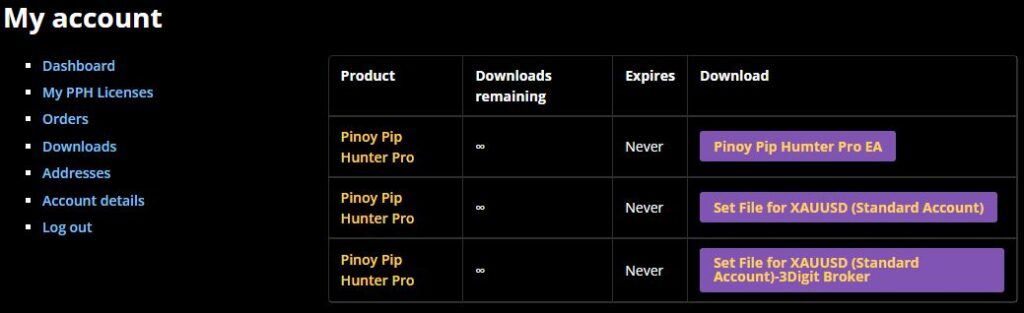
Step 1 — Download the EA Files
- Log in to your account at:
My Account → Downloads - Download:
- Pinoy Pip Hunter Pro EA (EX5 file)
- Your recommended SET file (XAUUSD Standard / 3-Digit Broker / etc.)
- Go to:
My Account → My PPH Licenses - Copy your License Key
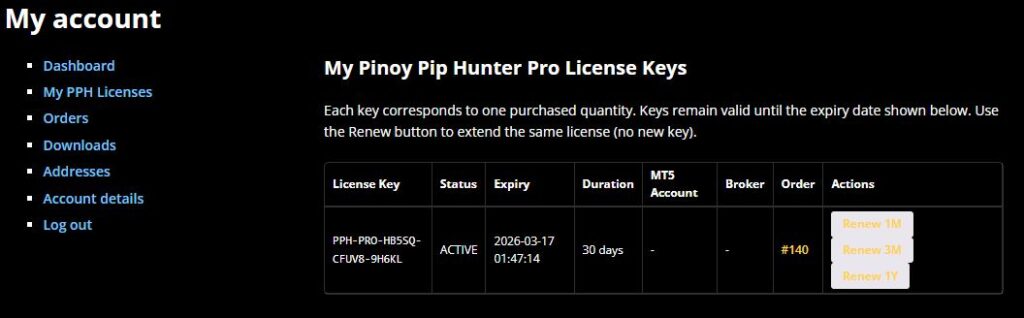
You will need this during activation.
Step 2 — Enable License Server (IMPORTANT)
Pinoy Pip Hunter Pro uses online license validation.
You must allow MetaTrader 5 to communicate with our license server before attaching the EA.
2.1 Enable WebRequest
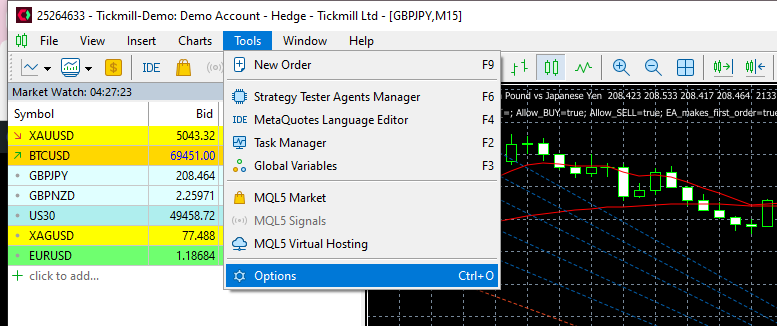
- Open MetaTrader 5
- Click Tools → Options
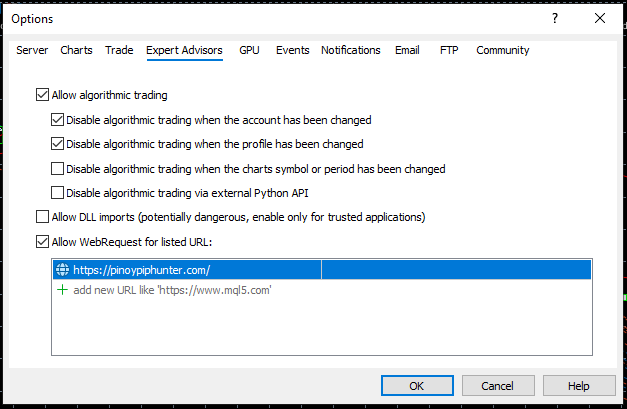
- Go to the Expert Advisors tab
- Enable: ✅ Allow WebRequest for listed URL
- Click Add new URL
- Enter exactly:
https://pinoypiphunter.com
- Click OK
⚠ Important:
If this URL is not added, the EA cannot validate your license and will show INVALID LICENSE.
Step 3 — Install the EA into MetaTrader 5
- In MT5, click File → Open Data Folder
- Open folder:
MQL5 → Experts - Copy the downloaded Pinoy Pip Hunter Pro.ex5 file into the Experts folder
- Restart MetaTrader 5
(Optional)
Place your SET file somewhere easy to find.
Step 4 — Enable Algo Trading
- In MT5, click Tools → Options → Expert Advisors
- Enable: ✅ Allow algorithmic trading
✅ Allow DLL imports (if required by your version) - Click OK
- Make sure the Algo Trading button at the top of MT5 is ON (green)
Step 5 — Attach the EA to the Chart
- Open a chart:
XAUUSD (recommended) - Recommended timeframe:
M1 or M15 (depending on your strategy version) - In Navigator:
Expert Advisors → Pinoy Pip Hunter Pro - Drag it onto the chart
- In Inputs:
- Load your recommended SET file
- Enter your License Key
- Click OK
The EA will now contact the license server and validate your key.
Step 6 — Confirm Successful Activation
If activation is successful, you will see:
LICENSE ACTIVE
Displayed on the chart dashboard.
The EA is now ready to trade.
Troubleshooting
“INVALID LICENSE”
Check:
- WebRequest URL added exactly:
https://pinoypiphunter.com - License key copied correctly
- MT5 account matches the registered account (if binding is enabled)
- Internet connection active
- MT5 restarted after adding WebRequest
- License has not expired
EA Not Visible in Navigator
- Confirm file is inside:
MQL5 → Experts - Restart MT5
- Right-click Navigator → Refresh
No Trades Opening
- Market may be closed
- Check correct symbol name (XAUUSD / XAUUSDm / GOLD / etc.)
- Ensure Algo Trading is ON
- Load the correct SET file
Need Assistance?
For support, contact us via Telegram: Join us in Telegram